Friday, December 7, 2018

50 Free Excel Templates to Make Your Life Easier

Nothing beats the time-saving awesomeness of the perfect Excel template.
Whether you’re managing a team of employees or a busy household, being able to simply plug in your data and go means your work gets done faster, your projects run smoother, and you’re the most organized person in the room.
But finding the right template can be time-consuming on its own.
Luckily, you can get started ASAP because we’ve compiled a list of 50 free Excel templates to help make your life easier today.
Our list has you covered with template picks spanning 7 categories:
Skip ahead to the sections you're interested in or check each one out to see what you’re missing.
To kick things off, let’s start with 7 project management templates your team can’t afford to go without.

Project management

1. Timeline template

timeline templateMost of us are used to seeing timelines in history class, but they also work well for project management. Timelines give you a general overview of important milestones and key events that everyone on the team should be aware of.
This helps your team stay on the same page throughout the course of your project. If you don’t have time to create your own project timeline, don’t sweat it. Use this template to create one quickly.

2. Gantt Chart template

Gantt Chart templateTake your project timeline a step further by using this Gantt Chart free Excel template. This gives you a timeline with a bit more detail. You can mark and see at a glance the start and end times of your project, plus all those important milestones to reach until it’s complete.
Each milestone also has a summary of what needs to be done so there’s no question as to what everyone on your team should be working on and when those deliverables are due.
For the best results, create a general timeline to look at for quick answers, such as when something is due, and your Gantt Chart to see the details of the deliverables before they’re due.

3. To-do list template

Hold your team accountable. Once you have your general timeline created and your Gantt Chart laid out, you’ll need a way to keep your team in the loop with the status of certain deliverables. This to-do list template will help you do just that.
to-do-list template
With this template, you can add the project tasks, a status update, the priority level, a due date, who’s in charge, and any relevant notes to ensure that everyone on the team knows what’s going on.
And if any issues come up, you can use this next template.

4. Issue tracking template

Issue tracking templateUnfortunately, all projects have their share of issues. It’s important to document these both for learning purposes in the future and figuring out how to solve the issue in the here and now.
This issue tracking template helps you keep a log of what went wrong, when it occurred, who handled the problem, and any relevant notes that may be helpful.
Remember, it’s better to identify the issues and document them now than it is to keep repeating the same mistakes over and over again because you failed to identify a common thread.

5. Weekly timecard template

Weekly timecard templateOn top of tracking issues, it’s a good idea to also record how long each step in a project is taking your team so you can price your services accordingly. This weekly timecard for projects will give you a better idea of that.

6. Project tracking template

Project tracking templateYou can also use this project tracking template to gauge if your projects are running on time and within budget.

7. KPI tracking template

KPI tracking templateThis project KPI tracking template will also help you measure the performance of your projectsto ensure you’re hitting the mark every time. After all, you don’t want to learn that you missed your target at the end of a project when it’s too late to do anything about it.
In this next section, I’ll show you the best templates to help you manage your money.

Money management

8. Money management template

Money management templateManage all your finances at a glance. This money management template keeps your finances organized by breaking down your spending into categories such as household, savings, and charitable donations.

9. Personal budget template

Personal budget templateCreate a personal budget. On top of managing your spending, you should also track your spending in relation to your budget to see where you can cut down. This personal budget template will make that a breeze.

10. Income and expense template

Income and expense templateUse this template when you want to compare your income to your expenses. This helps you see if you’re living within your means or not. And if it turns out you aren’t, consider using the personal budget template to fix things.

11. Family budget planner template

Family budget planner templateWhat if you’re managing more than just your own finances? For those in charge of a household, a family budget planner template can help you see an overall view of what your family spends money on throughout the year.  

12. Household budget template

Household budget templateOnce you have an idea of where your money goes as a family, you can then start using a household budget template to keep things in control and under budget.

13. College budget template

For students, there’s also this helpful college budget template that tracks where most of your funds are going. Then you’ll know what to expect and how to plan ahead each semester (for the most part).
College budget template

14. Holiday spending budget template

Holiday spending budget templateThe holidays can be a hard hit financially if you’re not careful. With lengthy wish-lists, it’s important to balance what everyone wants with what you can actually afford. This holiday spending budget helps you do that the easy way.

15. Travel budget template

Travel budget templateDream of traveling to a remote beach far away? Use this travel budget template and you’ll be well on your way to making that dream a reality.

16. Kids money management template

Kids money management templateYou can also teach your children how to track their allowance, savings, and spending with this helpful money management template for kids.

17. Savings goal template

Savings goal templateIf your kids (or you) have a savings goal in mind, use this free Excel template. By tracking exactly how much you save each month, you’ll have a better chance of making progress towards your goal.

18. Wedding budget template

Wedding budget templateWeddings can also be a costly adventure for many. To ensure you don’t go over budget, check out this free wedding budget template.

19. Get out of debt template

Get out of debt templateAnd if wedding bells are not in your immediate plans and getting out from under a mound of debt is, this template has your name on it.

20. Portfolio management template

Portfolio management templateYou can also use this portfolio management template to track and maximize how much you earn from your investments.
Up next, I’ll show you how a little planning ahead will make your life smooth sailing down the road.

Planning ahead

21. Meal plan template

Meal plan templateDeciding what to eat after a long day at work is never an easy task. To avoid this headache, meal plan ahead of time using this template, which helps you plan your breakfasts, lunches, and dinners before you even start your work week. It even has a convenient place for you to write down your grocery list.

22. Home remodel budget template

Home remodel budget templateIf you’re planning to remodel your house, you’d be foolish not to use this free home remodel budget template. With this, you’ll have a much better idea of what this undertaking is truly going to cost you.

23. Party planning template

Parties can also increase your spending for the month. Let this party planning template make sure your party stays within your budget.
Party planning template
Purchasing a house is another important milestone that can quickly spiral out of your budget and control.
Fortunately, the templates in our next section will help alleviate some of the financial stress that comes with such a major purchase.

Buying a house

24. Home expense calculator template

Home expense calculator templateYour first step in the home buying process, even before you go house hunting, is to see how much home you can really afford. This home expense calculator will give you the truth.

25.  Home buying checklist template

Home buying checklist templateOnce you have that all figured out, you’re ready for the fun stuff: deciding what you’d like in a house. This home buying checklist gives you a list of features to choose from so you can narrow down the type of house you’re looking for.

26. Mortgage calculator template

But before you decide to put in an offer on the house of your dreams, use this mortgage calculator template to see if your mortgage payments are something you can even afford.
Mortgage calculator template
Templates can also be helpful when you’re trying to lose or maintain your current weight. I’ll show you two great ones to use for this next.

Personal weight loss

27. Weight loss tracker template

Weight loss tracker templateThis free weight loss tracker helps you chart your weight loss journey so you can marvel at how much you’ve accomplished.

28. Couple weight loss tracker template

To add to that, grab a partner or spouse and track both of your weight loss journeys with this weight loss template. You can motivate each other to succeed.
Couple weight loss tracker template
Up next, let’s talk about the best Excel templates for managing your business.

Business management

29. Basic invoice template

Couple weight loss tracker templateWhen you need to create a simple invoice in order to receive payment from your customer, use this free template.

30. Service invoice template

Service invoice templateFor service-based businesses, this invoice template has everything you need. You can explain what each charge is and describe the services performed neatly and easily.

31. Sales invoice template

Sales invoice templateIf you’re collecting orders from customers, this sales invoice template has your name on it. With this, you’ll be able to track orders and clearly explain to customers exactly what they’re receiving with their purchase.

32. Account statement template

Account statement templateAs your month progresses, you can track your sales orders from customers using this free template to make sure you’re hitting your targets each time.

33. Packing slip template

Packing slip templateIf you’re shipping goods to customers, use this packing slip template to show your customers a breakdown of their order.

34. Price quote template

Price quote templateAnytime you need to send a customer a price quote, reach for this template and you’ll have a professional one to send over ASAP.

35. Purchase order template

Once your customer decides to accept your price quote, you can then create a purchase order thanks to this template.
Purchase order template

36. Sales receipt template

Sales receipt templateTo send a simple sales receipt to your customers, use this free template.

37. Rent receipts template

Rent receipts templateIf you’re renting your home or business to a tenant, use these rent receipts to keep things organized. Come tax time, you won’t have to worry about finding the rent paper trail they’ll be asking for.

38. Home office expense tracking template

Home office expense tracking templateSolopreneurs working from home will want to use this home office expense tracker to double check that you’re making the most out of your eligible tax deductions.

39. Computer repair invoice template

Computer repair invoice templateAnd if you happen to be in the computer repair business, use this free invoice template instead of the generic one so you can come across as professional and organized.

40. Time card template

Time card templateKeeping track of your employee time sheets should be a top priority for any manager. This free time card template does that in less time. Simply have your employees “clock in” each day using this sheet and at the end of the week, you’ll have everything you need to run payroll.

41. Weekly timesheet template

Weekly timesheet templateOnce you have your employees’ daily log all set, you can then transfer that information to this weekly timesheet template to get a better view of their hours for the month.

42. Weekly timesheet with breaks template

Weekly timesheet with breaks templateThis weekly timesheet also includes breaks in it so you can get a more accurate picture of how many hours your employees are working each week.

43. Free payroll calculator template

Free payroll calculator templateBefore you run payroll, use this free payroll calculator to calculate your employee’s gross pay.
Now that you have templates for the technical aspects of operating your business, let’s go over a few to use if you’re just starting out or want to take your business to the next level.

Business planning

44. Startup business planning template

Startup business planning templateEvery great business starts with two things: a good product and a solid business plan. While I can’t help you with the product itself, I can offer you this free Excel template which shows you everything you need to include in your business plan.

45. Financial plan projection template

Financial plan projection templateAnd if you’re stuck trying to figure out how to plan your finance, this template will be worth its weight in gold.

46. On-page SEO template

On-page SEO templateBefore you launch your business’ website, or if you already have an existing one live, you should use this on-page SEO template to ensure your website is properly set up for search engines. This simple step can help you drive more leads to your website. If you're looking to up your SEO game, check out these actionable SEO tips for startups.

47. Marketing calendar template

Marketing calendar templateOnce you have your business plan in place, conducted market research, and mapped out your customer’s journey, you’re ready to nail down your 12-month marketing plan. This template will make the task much less intimidating.

48. Marketing editorial calendar

Marketing editorial calendarOn top of your marketing plan, you’ll need an editorial calendar that outlines the type of content and social posts you’ll share with your audience. Use this free template to plan out the next few months of content for your business.

49. SWOT analysis template

SWOT analysis templateAs your business grows, it’s essential that your team grows with it. To ensure your team is taking steps in the right direction, use this SWOT analysis for your business every few months.

50. Event planning template

Event planning templateAnd when it comes time to celebrate your grand opening or a major milestone, be sure to take advantage of this event planning template so yours runs without a hiccup.

Don’t waste time creating your own templates, use these free Excel ones instead

You’re already busy enough, why add to your stress and overflowing to-do lists?
Instead of spending countless hours creating your own templates, use one of the free Excel templates on our list and you’ll make all the messy, overwhelming parts of your life that much easier.
Whether you’re starting a business or managing your personal finances, this list of 52 Excel templates has you covered.

Source: https://www.goskills.com/Excel/Articles/Free-Excel-templates

Saturday, July 28, 2018

How to Create a Flowchart in Excel

Plenty of options exist for creating flowcharts, but you may not need one if you’re already subscribed to Microsoft Office 365. We’ve shown how you can create a flowchart in Word, but Excel works just as well.
In this article, we’ll show you how to set up a flowchart environment and create awesome flowcharts in Excel. We’ll end with some links where you can download free Microsoft Excel flowchart templates.


Set Up a Flowchart Grid in Excel

When creating a flowchart in Excel, the worksheet grid provides a useful way to position and size your flowchart elements.

Create a Grid

To create a grid, we need to change the width of all the columns to be equal to the default row height. The worksheet will look like graph paper.
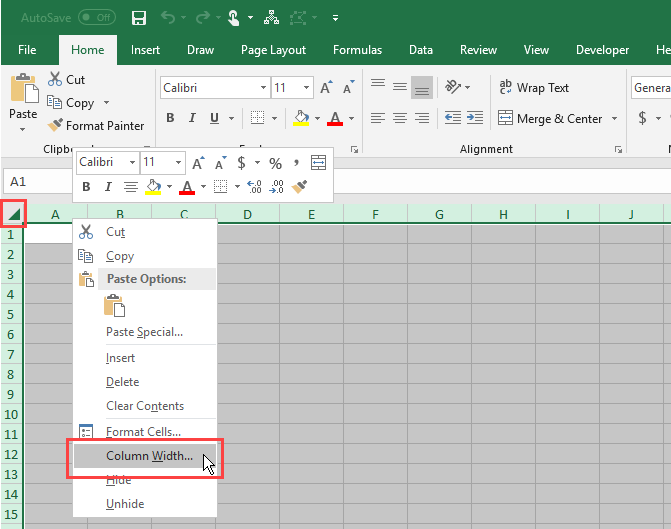
First, select all the cells on the worksheet by clicking the box in the upper-left corner of the worksheet grid. Then, right-click on any column heading and select Column Width.


Select all cells, then select Column Width in Excel
I


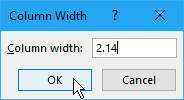
f you’re using the default font (Calibri, size 11), the default row height is 15 points, which equals 20 pixels. To make the column width the same 20 pixels, we must change it to 2.14.
So enter 2.14 in the box on the Column Width dialog box and click OK.
Change Column Width in Excel

Enable Snap to Grid

The Snap to Grid features makes it easy to place and resize shapes on the grid so you can consistently resize them and align them to each other. Shapes snap to the nearest grid line when you resize and move them.
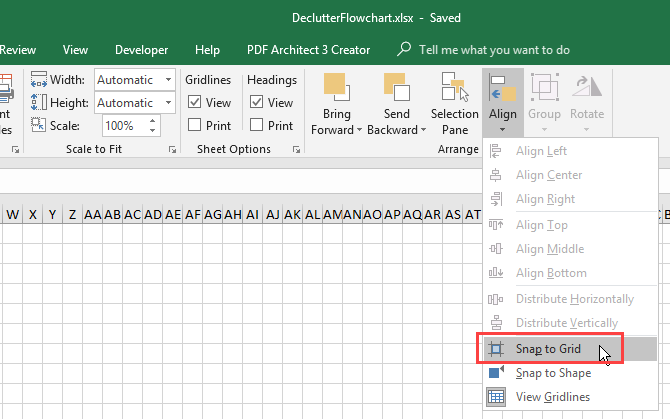
Click the Page Layout tab. Then, click Align in the Arrange section and select Snap to Grid. The Snap to Grid icon on the menu is highlighted with a gray box when the feature is on.


Enable Snap to Grid in Excel

Set Up the Page Layout in Excel

You should set up the page layout for your flowchart so you know your boundaries before laying out your flowchart. For example, if you’re going to insert your flowchart into a Word document, you should set the margins in Microsoft Excel to the same margins as your Word document. That way you won’t create a flowchart larger than the pages in your Word document.
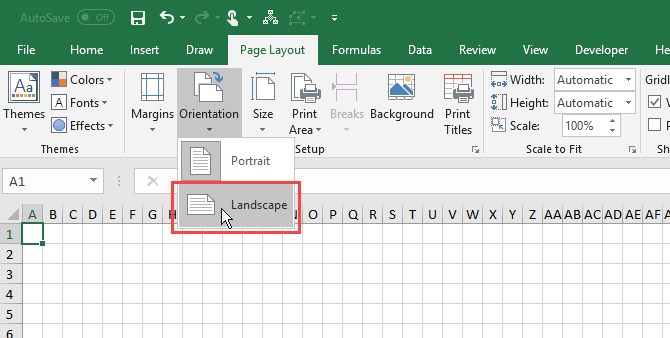
To set up items like margins, page orientation, and page size, click the Page Layout tab. Use the buttons in the Page Setup section to change settings for the different layout options.


Change Page Orientation in Excel


How to Create a Flowchart in Excel

Now that your worksheet is set up for flowcharts, let’s create one.

Add a Shape Using the Shapes Tool

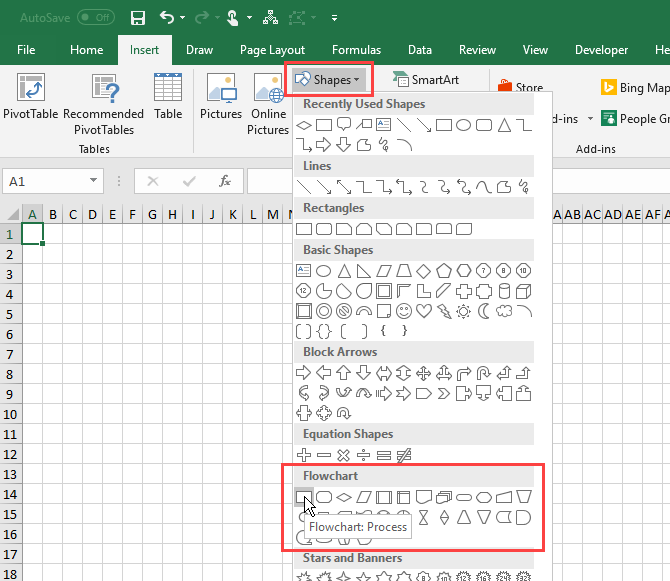
To add your first shape to your flowchart, go to the Insert tab and click Shapes in the Illustrations section. A dropdown menu displays a gallery of various types of shapes like basic shapes, lines, and arrows.
Select a shape in the Flowchart section of the dropdown menu.


Select a Shape in Excel


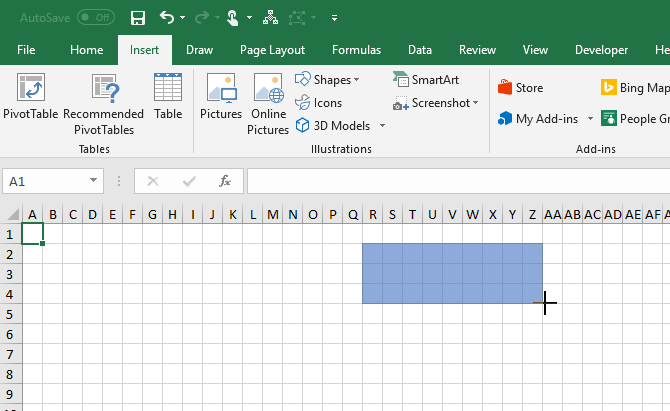
Drag the shape to the size you want on the worksheet. If Snap to Grid is enabled, the shape automatically snaps to the gridlines as you draw it.


Draw a shape on the grid in Excel


Add More Flowchart Shapes Using the Format Tab


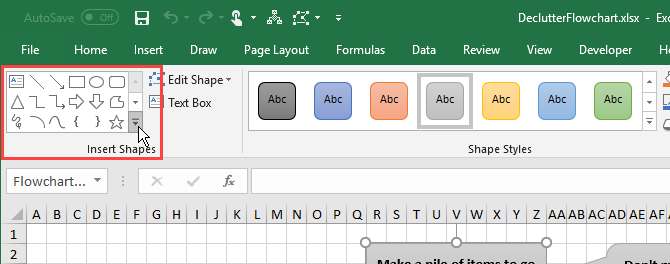
Once you draw your first shape and select it, a special Format tab becomes available. You can use this tab to add more shapes to your flowchart and to format your shapes, which we’ll cover later.
A dropdown gallery of shapes displays, just like when you clicked Shapes in the Illustrations section on the Insert tab. Select the shape you want to add and draw it on the worksheet.
You can also double-click a shape on the gallery menu to add it to the worksheet. To resize the shape, select it and drag one of the handles along the edges.
To move the shape, move the cursor over the shape until the cursor becomes a cross with arrows. Then, click and drag the shape to where you want it.


Open the Shapes gallery on the Format tab in Excel

Add Text to a Shape

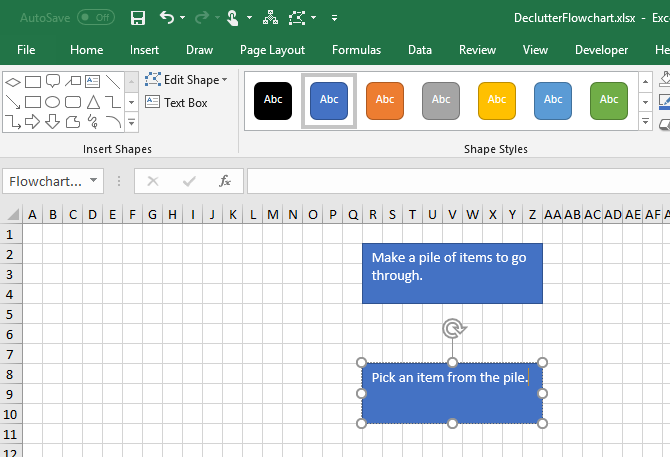
To add text to a shape, simply select the shape and start typing. We’ll show you later how to format the text and change its alignment.
To edit text in a shape, click on the text in the shape. This puts you in edit mode allowing you to add, change, or delete the text.
Click outside the shape or select the shape like you were going to move it as we talked about in the previous section.


Type text in a shape in Excel


Add Connector Lines Between Shapes

After adding some shapes to your flowchart, it’s time to connect them.
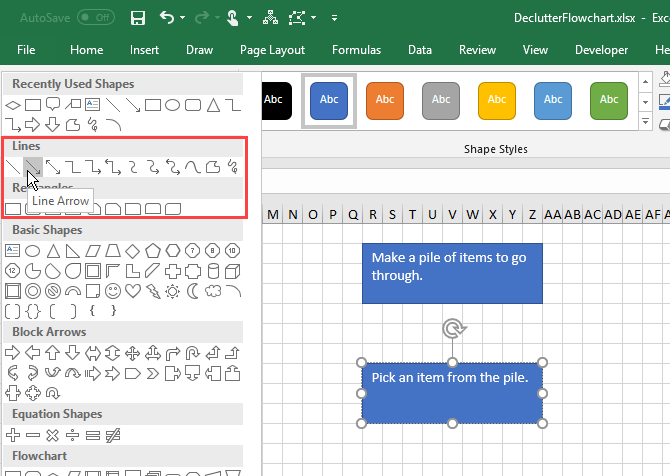
Select Line Arrow on the shapes gallery either on the Insert tab or the Format tab.


Select Line Arrow in Excel


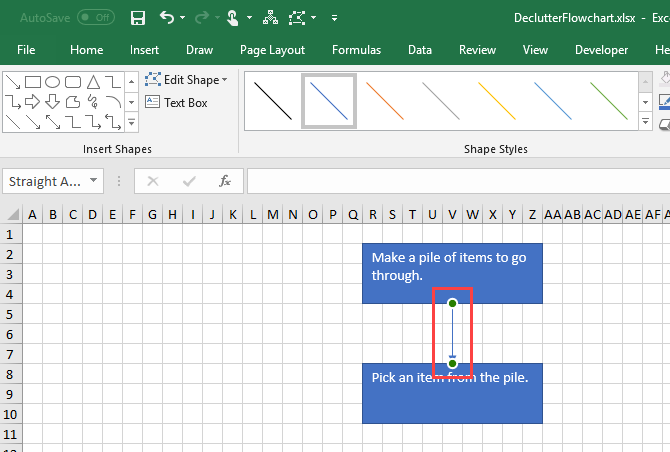
The cursor becomes a plus icon. Move the cursor over the first shape you want to connect. You’ll see dots at the points that represent connection points for that shape.
Click on the connection point where you want the line to start and drag the line to the next shape until you see the connection points on that one. Release the mouse on one of those points.
An arrow displays where the line ends. When a line is properly connected to a shape, the connection point is solid. If you see a hollow connection point, the line didn’t connect to the shape.


Draw a connector line on a flowchart in Excel

Add Text to Connector Lines

In flowchart programs like Visio and Lucidchart, you can add text directly to connector lines. In Microsoft Excel, you can’t do that. But you can do the next best thing.
2 Free Open Source Microsoft Visio Alternatives 2 Free Open Source Microsoft Visio Alternatives Need to create diagrams, flowcharts, circuits, or other kinds of entity-relationship models? Microsoft Visio is the best software for that, but it's expensive. We will show you two free open source alternatives. Read More
To add text to a connector line, you create a text box and position it along the line or on the line.
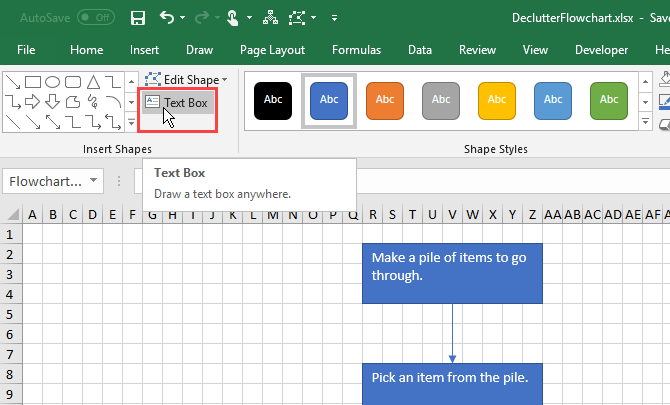
Select a shape or a connector line to activate the Format tab. Click the tab and then click Text Box in the Insert Shapes section.


Click Text Box in Excel


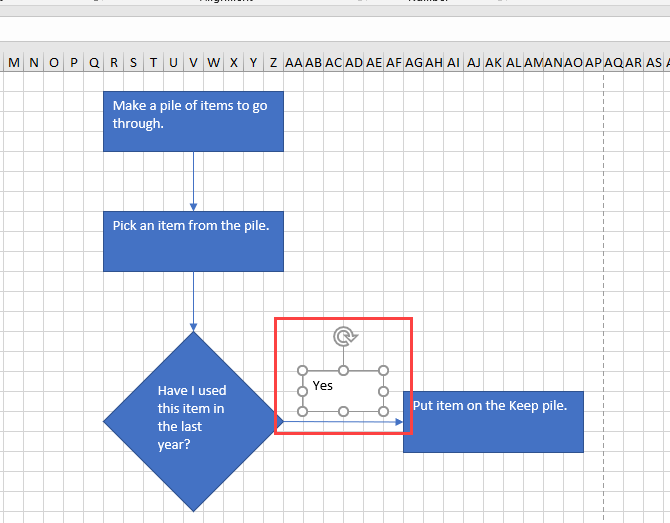
Draw the text box near the connector you want to label. Move the text box to where you want it the same way you move shapes.
You may want to turn off Snap to Grid when positioning text boxes on connector lines. This allows you to fine tune the size and position of the text boxes.
To add text, select the text box and start typing. We’ll show you how to format and position text boxes a bit later.


Add a text box near a connector line on a flowchart in Excel


Add Notes Using Callouts

You can also use text boxes to add notes to your flowchart the same way you used them to add text to connector lines. And you can use a connector line to point to the area relating to the note.
But, that might be confusing and look like a step in the flowchart. To make a note look different, use a callout.
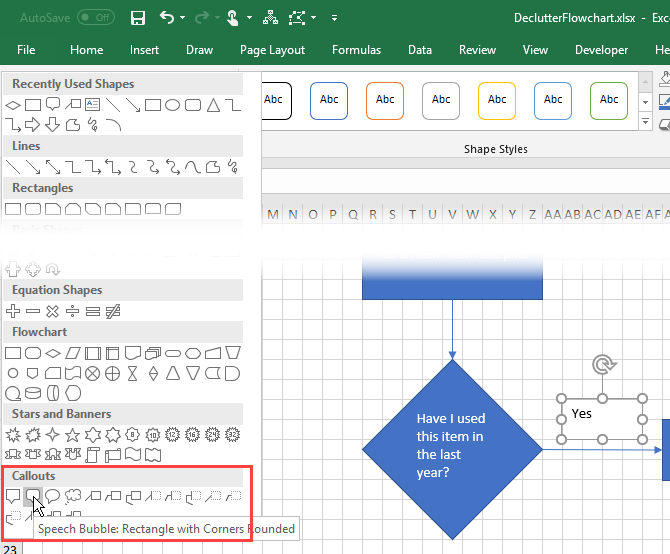
Select a callout from the shapes gallery either on the Insert tab or the Format tab.


Select a callout shape in Excel


Draw the callout on the worksheet just like you would draw a shape.
Add text to the callout and use the handles to resize it the same way you would on a shape.
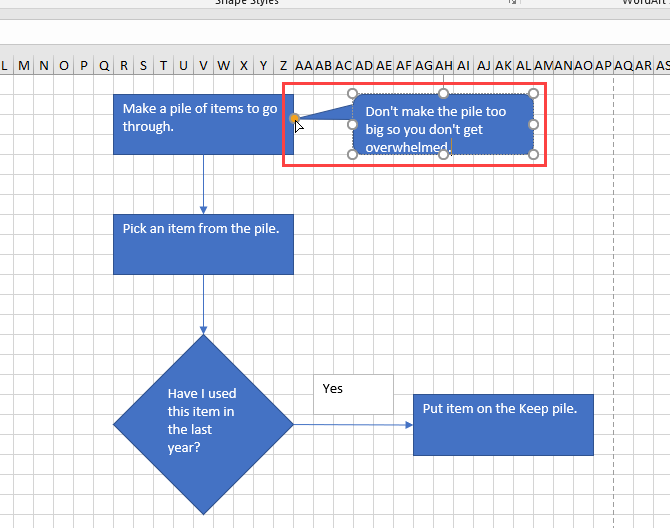
Initially, the part of the callout that points shows on the bottom border. To make the callout point to where you want, click and drag the point. When the point connects with a shape, the connection point turns red.


Draw a callout in Excel


How to Format a Flowchart in Excel

Excel has many formatting options, too many to cover here. But we’ll show you a few basics so you can format your shapes, text, and connector lines.

Format Shapes

An easy way to format shapes and the text in shapes is to use Theme Styles.
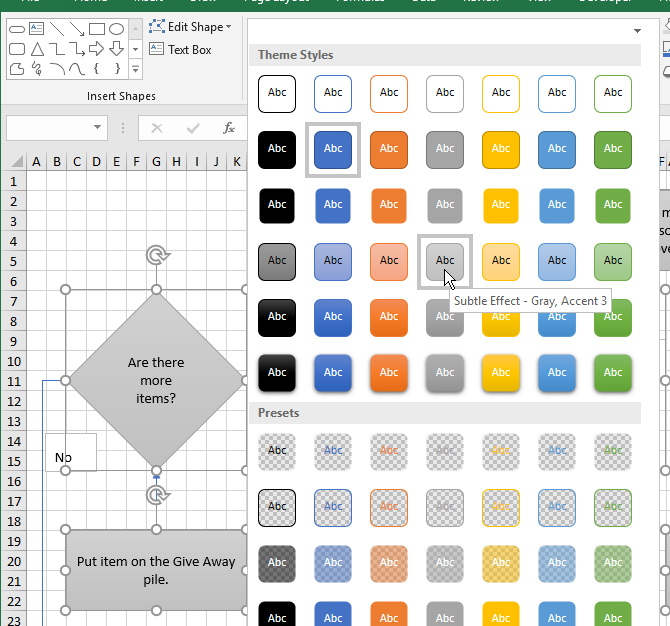
Select all the shapes you want to format with the same style. Click on the first shape, then press and hold down Shift while clicking the other shapes. Then, click the Format tab.
Click the More arrow in the lower-right corner of the Theme Styles box in the Shape Styles section. A gallery of styles displays in a dropdown menu.
When you move your mouse over the various theme styles, you’ll see how they look on your shapes. Click the style you want to use.


Change the Theme Style for shapes in Excel


Format Text in the Shapes and Text Boxes

Formatting text in shapes and text boxes is done the same way you normally format text in cells.
First, we’ll format shapes. Select all the shapes containing text you want to format using the Shift key while clicking the remaining shapes after the first one.
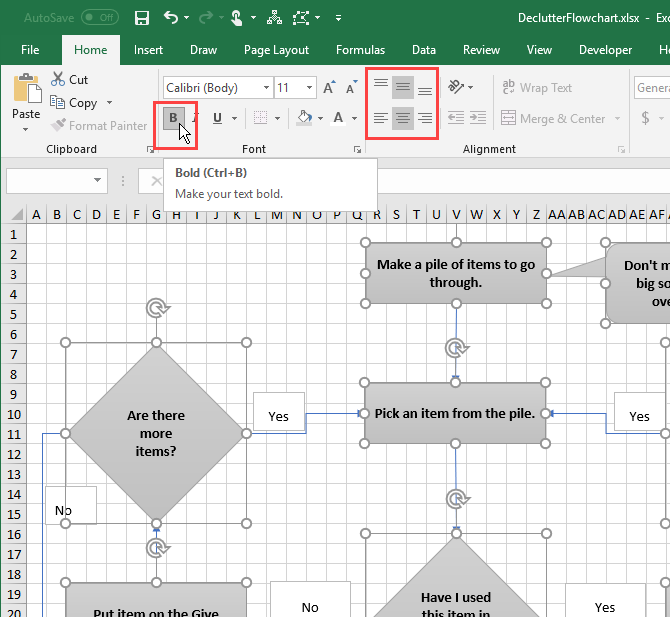
Click the Home tab and use the commands in the Font and Alignment sections to format your text. For example, we used the Center and Middle Align buttons in the Alignmentsection to center the text in the shapes horizontally and vertically. Then, we applied Boldto all the text.
Do the same thing with the text boxes along the connector lines to format and align the text.


Format text in shapes using the Home tab in Excel

Format Connector Lines

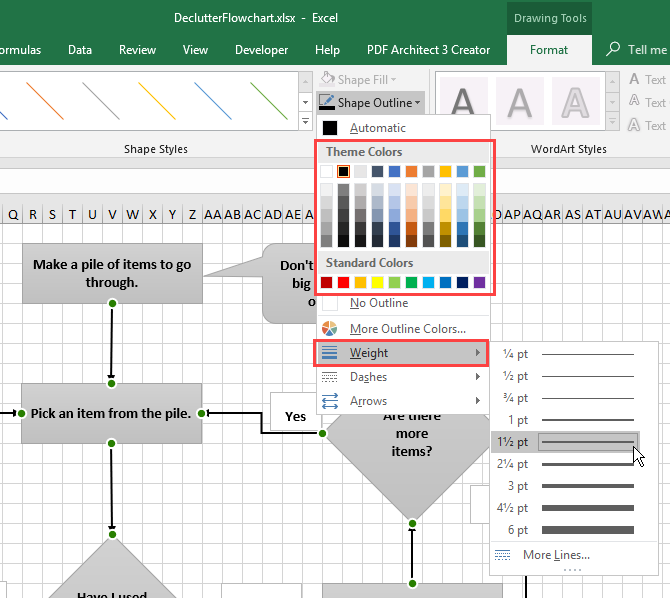
The default format on the connector lines is a bit thin. We’re going to make them thicker.
Select all the connector lines you want to format using the Shift key while clicking the remaining lines after the first one. Then, click the Format tab.
Click Shape Outline in the Shape Styles section and select a color from the Theme Colors section or Standard Colors section. Then, on the same menu, go to Weight and select a thickness for the connector lines from the submenu.


Change color and weight for connector lines on a flowchart in Excel


Get Started With These Excel Flowchart Templates

Excel flowchart templates provide a quick start when creating your own flowcharts. We’ve previously covered flowchart templates for Microsoft Office, but these are specifically for Microsoft Excel.
Here are more templates you can download:

Organize Your Life With Excel Flowcharts!

The ability to create flowcharts in Microsoft Excel makes it a very useful and versatile tool for keeping yourself organized. It’s not the only option, though. There are several good free flowchart tools available for Windows.
7 Best Free Flowchart Tools for Windows 7 Best Free Flowchart Tools for WindowsFlowcharts can help you streamline your work and life and break free from bad habits. But what's the best way to make a flowchart? We've found 7 great flowchart tools. Read More

Source: https://www.makeuseof.com/tag/create-flowchart-excel/

Saturday, July 21, 2018

How to create simple and dependent drop-down lists

Using tables, named ranges, formulas, data validation, and table styles

Drop-down lists in Microsoft Excel (and Word and Access) allow you to create a list of valid choices that you or others can select for a given field. This is especially useful for fields that require specific information; fields that have long or complex data that’s hard to spell; or fields where you want to control the responses.
Creating dependent drop-down lists (when combined with an INDIRECT function) is another benefit. This allows you to select a product category from the main menu drop-down list box (such as Beverages), then display all the related products from the submenu (dependent) drop-down list box (such as Apple Juice, Coffee, etc.). This works very well for ordering and inventory purposes because it divides all the products into manageable categories. This is how most wholesale and retail companies handle their product lines. In fact, companies from hospitals and insurance carriers to banks and more use drop-down lists, check boxes, combo lists, and/or radio buttons to minimize typing and user errors.

How to create a simple drop-down list

We’ve created a sample drop-down list so you can practice the steps, or feel free to use your own data.

If your spreadsheet database is large or contains numerous fields, we recommend that you place the list box items in a table on a separate spreadsheet, but in the same workbook. However, if your list is relatively short, you can type the items for your list, separated by commas, in the Source field of the Data Validation dialog window.
1. Open a new workbook and add a second spreadsheet tab (click the ‘+’ sign at the bottom of the screen on the tab bar).
2. Rename Spreadsheet 1 as “wks” for worksheet, and Spreadsheet 2 as “lists.”
3. Enter the names of 10 doctors (or other applicable items) in column A from A1 through A10.
4. Sort the list to your preference. If you plan to sort by last name, enter the last name first, then the first name and middle initial on your original list.
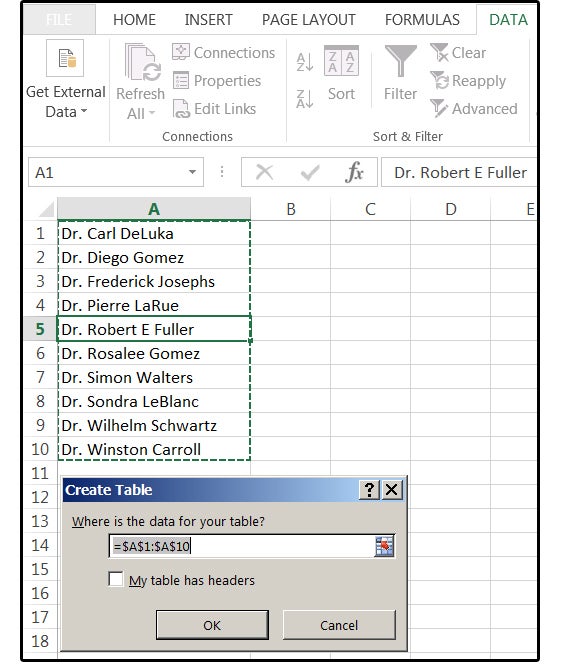
5. Highlight the range (A1:A10) or just position your cursor on any cell in the list, and press Ctrl+ T to convert this group of items to a table. Excel calls it Table 1, 2, 3, etc., which is not a problem if there is only one table. Be sure to check the box that says “My Table Has Headers.”
Note: When data is in a table, you can add or delete items from the list (and all other drop-down lists that use that same table) and they will all update automatically.


01 enter your list of items then convert the list to a table JD Sartain / IDG Worldwide


Enter your list of items, then convert the list to a table.
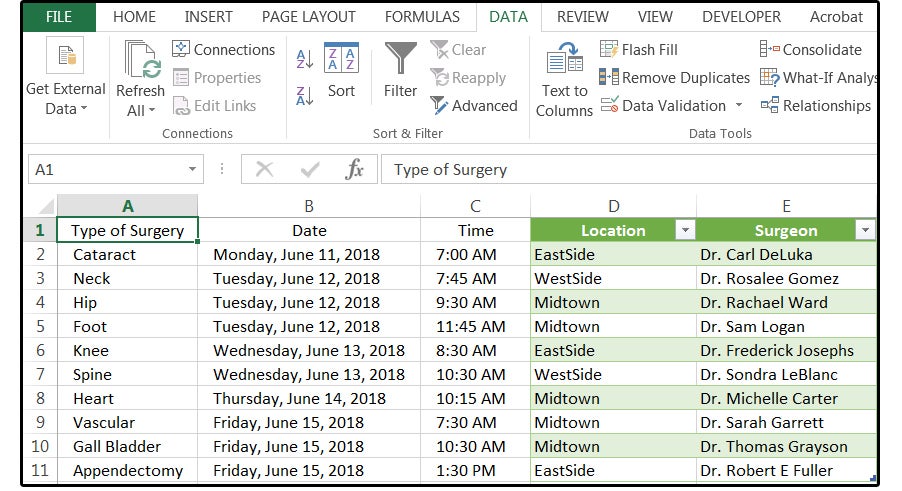
6. Move to Spreadsheet 1 (renamed wks). Enter some data similar to that shown in the following graphic, for example: Type of Surgery, Date, Time, and Surgeon, or create your own data.
7. Select the cell or group of cells where you want the drop-down list to appear. In this case, select D2 (or D2:D11, if you prefer, though it's not necessary to highlight the entire column).
8. From the Data tab, select Data Validation > Data Validation.
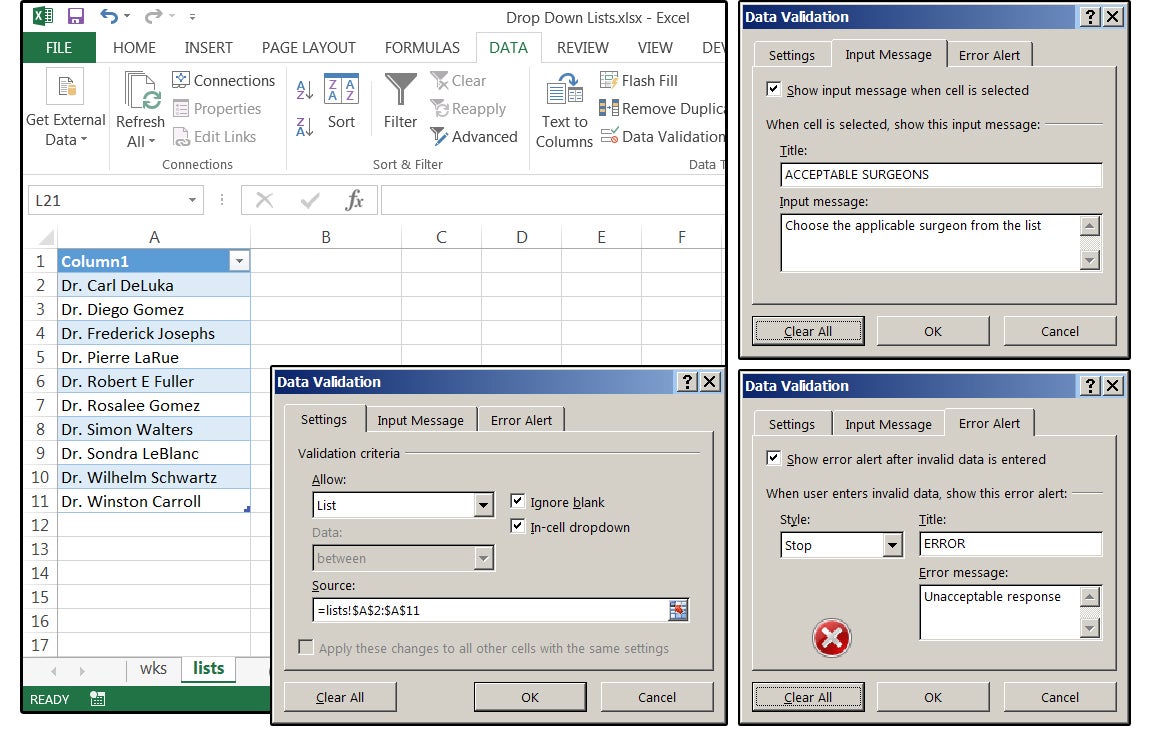
9. In the Data Validation dialog window, choose the Settings tab. In the Validation Criteria panel in the Allow field, select the option called List from the drop-down list box.


02 from the settings tab choose list from the list box JD Sartain / IDG Worldwide


From the Settings tab, choose List from the list box.
10. Tab down to the Source field and click inside this box.
11. Move your cursor outside of this dialog window and select the lists spreadsheet from the workbook tabs at the bottom of the screen.
12. Highlight the range of doctors—that is, A2 through A11. Notice that Excel adds this range in the Source field box (=lists!$A$2:$A$11) for you.
13. Next, click the Input Message tab and enter a Title and Input Message for your drop-down list.
14. Next, click the Error Alert tab and enter the Title and Error Message for your drop-down list.
15. Click OK and your drop-down list box is complete.


03 enter the source range input message error alerts JD Sartain / IDG Worldwide


Enter the Source range, Input Message, and Error Alerts for your drop-down list box.
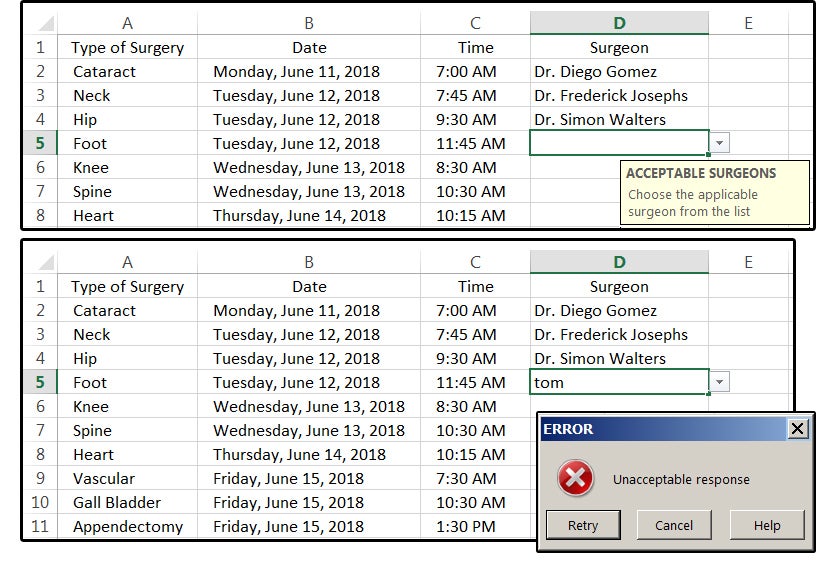
16. Move back to the wks spreadsheet and position your cursor in cell D2. Notice the arrow for the drop-down list box, and your custom Input Message appears to the right of each cell in this column that you select. Click the down arrow and choose a doctor from the list that specializes in the type of surgery on the corresponding row of column A. For example, Dr. Simon Walters’ field is hip surgery.
17. If anyone types an invalid name—that is, they try to type in a name that is not on the Acceptable Surgeon’s list, the custom error message that you specified appears when the Enter key is pressed. Click Cancel to exit this dialog.


04 choose a doctor or type an invalid entry for error alert JD Sartain / IDG Worldwide


Choose a doctor from the list or type an invalid entry for an Error Alert.
Create dependent drop-down lists
Dependent drop-down lists are like the submenus in Office applications. The main menu (or drop-down list) displays various options with submenus below each one that display further options related to the main menu. In our sample worksheet, the drop-down list provides a selection of surgeons for you to choose that matches the type of surgery scheduled.
For this next exercise, imagine that you run a small rural hospital located about 50 miles from a large city that has three large, completely staffed hospitals. It’s your job to schedule surgeons from one of these three large facilities to see patients at your hospital. The “main” drop-down list contains a selection of hospitals (by location) where each surgeon practices. The submenu drop-down lists provide the names of each surgeon that works in each of these facilities: East Side, West Side, or Midtown.

A. Create the lists

1. First, add another spreadsheet and name it lists2.
2. On the lists2 spreadsheet, enter the following title for column A: Hospital Locations. Under Hospital Locations enter the names EastSide, WestSide, and Midtown in cells A2, A3, and A4, respectively (without spaces or use one word).
3. Move your cursor to the first cell under the title Hospital Locations (A2). Click Home > Format As Table, and choose a Table Style from the submenu, then click OK.
4. Select the hospital locations in this list (A2:A4). Enter a table name (Locations) in the Name box (above column A) or press Ctrl+ T to convert these items to a table, which Excel names Table 1, 2, 3, etc. Finally, check the box that says My Table Has Headers.
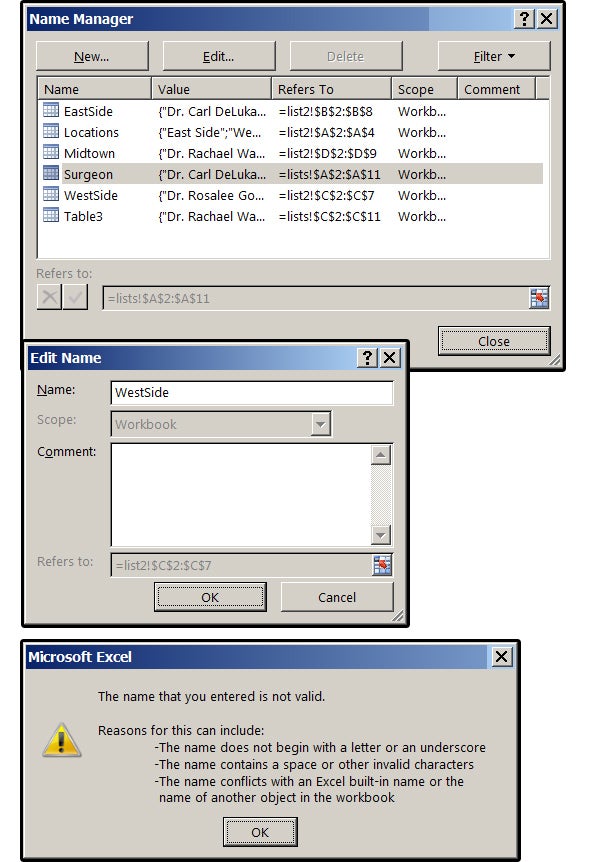
5. To rename your tables, select Formulas > Name Manager. Cursor down to Table 1 (2, 3, 4, etc.), then click the Edit button.
6. In the Edit Name dialog box, type in the new name (Locations).
Note: Excel does not allow spaces or other special characters. Names must begin with a letter or an underscore, and names cannot conflict with any of Excel’s built-in names or other objects in the workbook (for instance, you cannot have two ranges with the same name in a single workbook—even if the ranges are in separate spreadsheets).


05 rename your tables using excels name manager JD Sartain / IDG Worldwide

Rename your tables using Excel’s Name manager.
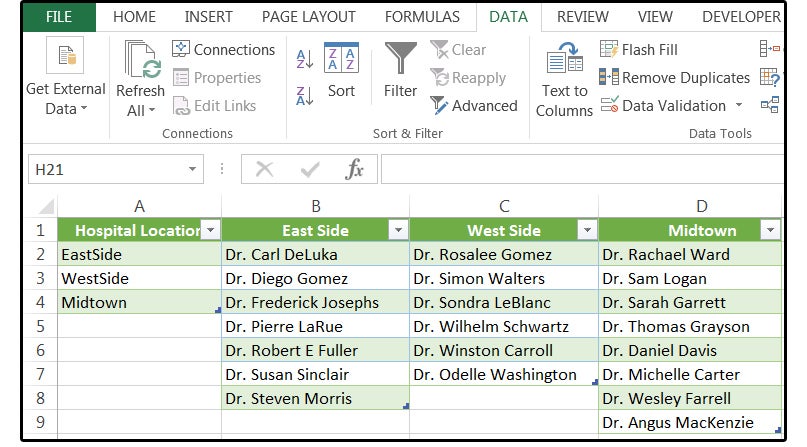
7. Next, you must create a separate table for each of the hospital locations. On the lists2 spreadsheet, enter the following titles, for column B: East Side, C: West Side, and D: Midtown (these column labels will also be your range names minus the spaces).
8. Enter some doctors' names under each of these three columns (B, C, D).
9. Format each list as a named table (repeat step 3 above).
10. Highlight the range of each column individually (B1:B8; C1:C7; D1:D9). Press Ctrl+ T to convert these groups of items to Tables, which Excel names Table 2, 3, 4, etc., then check the box that says My Table Has Headers. Repeat steps 5 and 6 above to rename your tables. Remember, no spaces in range names.


06 create tables for your lists JD Sartain / IDG Worldwide

Create tables for your lists.
Note: If you have multiple tables, name them based on the header you provided for each column.

B. Create the drop-downs

1. First, return to the wks spreadsheet and delete the previous drop-down list in column D titled Surgeons. Create a new header in column D1 titled Location, and name column E1 Surgeons.
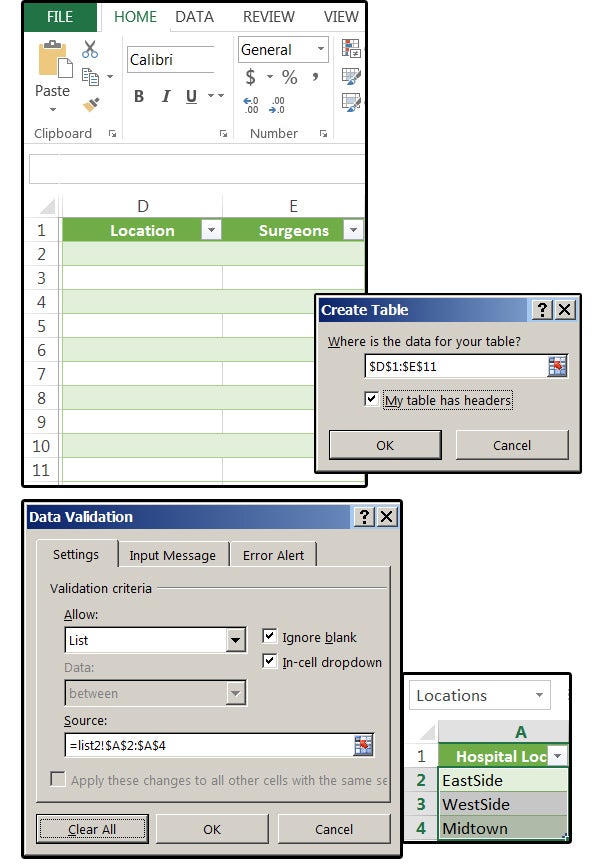
2. Select cells D1:E11, then select Home > Format As Table, choose a style, check the headers box, and click OK.
3. Next, select cells (D2:D11) for the main menu drop-down list.
4. From the Data tab, select Data Validation > Data Validation.
5. In the Data Validation dialog window, choose the Settings tab. In the Validation Criteria panel in the Allow field, select the option called List from the drop-down list box.
6. In the Source box, click the list2 spreadsheet, highlight the Hospital Location list minus the header (A2:A4), and click OK.


07 create the main menu dropdown list JD Sartain / IDG Worldwide

Create the main menu drop-down list.

7. Move your cursor to cell E2.
8. Repeat steps 8 and 9 above.
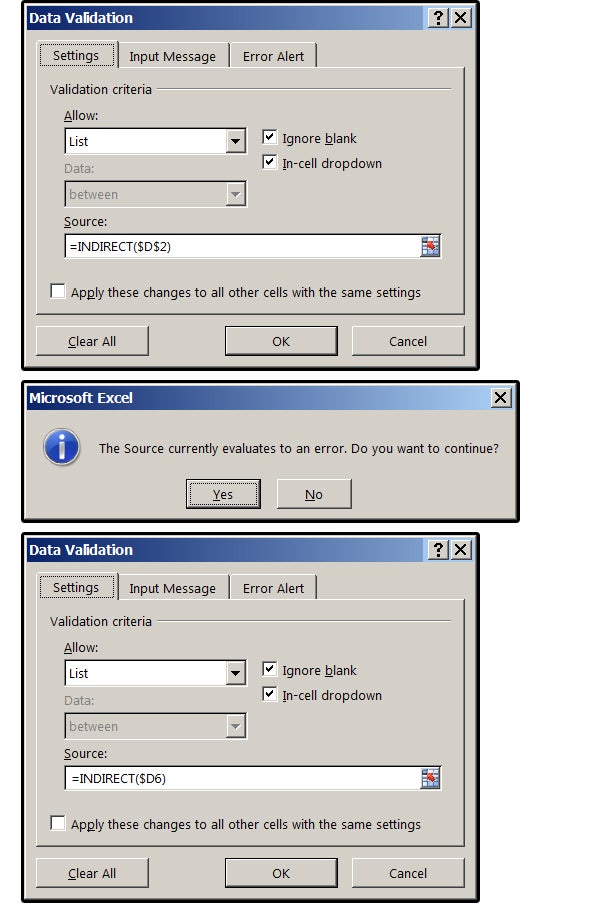
9. This time, in the Source box, enter this formula: =INDIRECT($D$2)—but this is for the current cell only—then click OK.
Note: If you receive the Source Error message, just click Yes, because the errors will cease when the data from the drop-down lists fill in.
10. To fill out the column (which is the obvious course), enter the formula like this: =INDIRECT($D2)—yes, without the '$' sign on the row number—then copy cell D2 down from D3 through D11. This activates the entire range.
08 enter the indirect function as a relative formula then copy JD Sartain / IDG Worldwide

Enter the INDIRECT function as a relative formula, then copy.
11. If you want to add an Input Message or an Error Alert, repeat steps 13 through 14 above in the section "How to create a simple drop-down List."

C. Test your work

Now it’s time to test your work. Click the drop-down arrows (one at a time) in column D (Location).
1. Choose a hospital from the list, and it appears in the active cell.
2. Move your cursor to column E (Surgeon) and choose a doctor from the list of doctors at the location you specified in column D.

09 the drop down lists work as expected JD Sartain / IDG Worldwide


The drop-down lists work as expected.

D. Work-around for two word items

If you want to use two or more words for the main menu drop-down (e.g., Location) and you do not want to run the words together without a space (e.g., East Side instead of EastSide), enter this formula in the dependent drop-down (Surgeon) Source box in the Data Validation dialog window:

=INDIRECT(SUBSTITUTE(D2," ","")) where D2 is the cell address, " " means quote-space-quote, and "" means quote-quote with no space. Translation: substitute cell D2 that has a space with D2 minus the space.
That’s all for now. If you need additional help, you can download this spreadsheet here:

Source: https://www.pcworld.com/article/3276341/office-software/excel-how-to-create-simple-and-dependent-drop-down-lists.html


Tuesday, May 1, 2018

How to Merge and Unmerge Cells in Excel: Tips and Tricks to Know

When you want to combine two cells into one in Excel, you have a few options. Merging cells is one of the best ways to do it. But it has a few drawbacks, too. Even so, you might find that it’s useful for working with text in Excel.
We’ll take a look at how to merge cells in Excel, how to unmerge them, and another method for combining two cells into one without losing the data in the cells.

How to Merge Cells in Excel

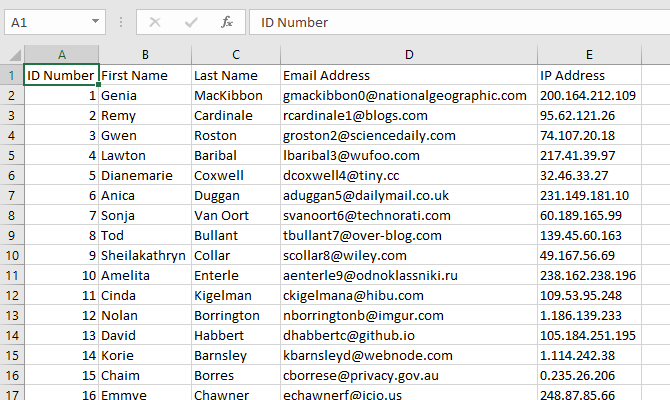
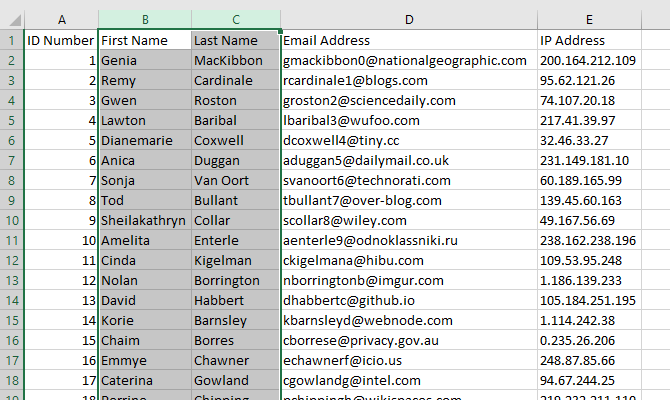
Before we get into how to merge cells, let’s talk about exactly what happens when you merge in Excel. In this example, we’ll look at two columns, one for first name and one for last name:


how to merge cells in excel - Two Excel columns before merging


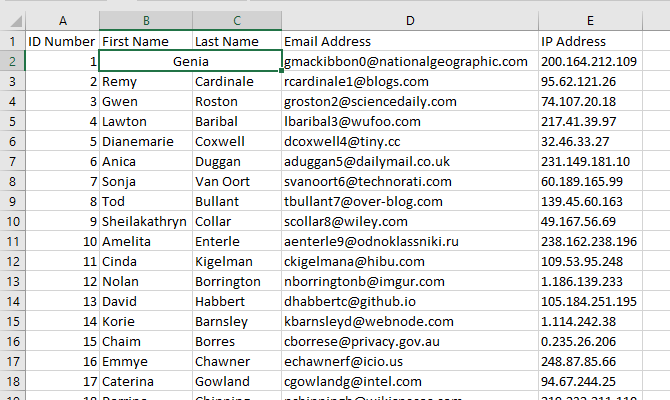
When we merge two of these cells, we end up with the contents of those cells in a single cell, like this:


how to merge cells in excel - A single merged cell in Excel


The two cells have been combined, leaving a single cell that’s twice as wide and only contains one value. Excel only keeps the upper-left value of any merged cells. That’s one drawback to merging in Excel. We’ll talk about how to get around that in a moment.
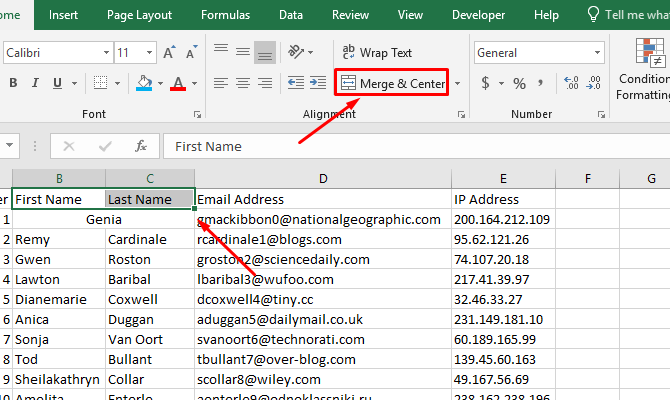
To merge cells in Excel, select the cells you want to merge. You can select any number of cells; in our example, we’ll select just two. Once you’ve selected the cells, head to the Home tab and click Merge & Center in the Alignment section:


how to merge cells in excel - Excel Merge & Center button


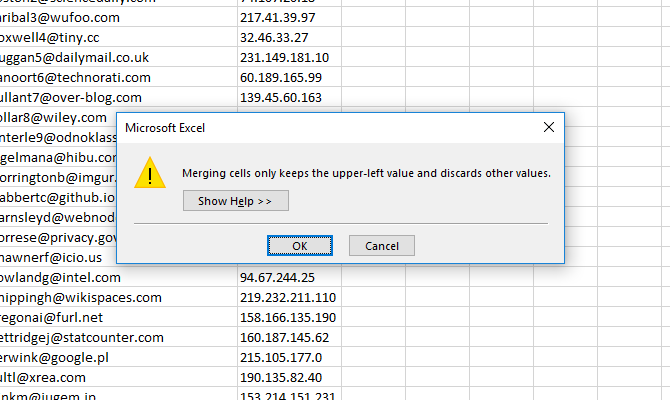
If you’ve selected more than one with text in it, you’ll get a warning:


how to merge cells in excel - Excel merge cells warning


If you want to continue, just hit OK. You’ll then have your merged cell as in the screenshot below. That’s all there is to it.


how to merge cells in excel - Excel merged cell

Merging Columns in Excel

In some cases, you’ll want to merge entire columns instead of just a few cells. Merging columns in Excel is easy; just select both columns and use the same steps.
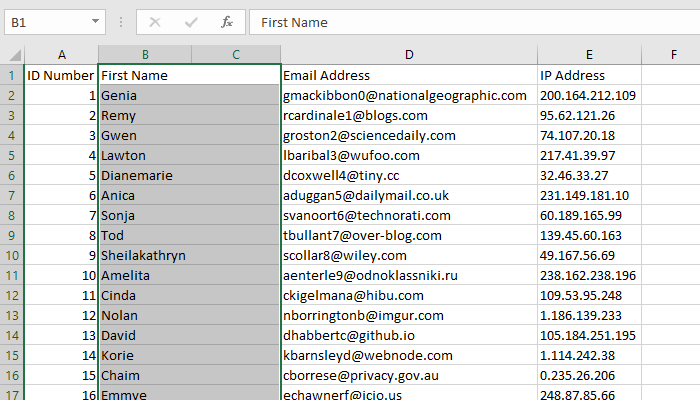
First, highlight the two columns you want to merge:


Selecting columns to merge in Excel


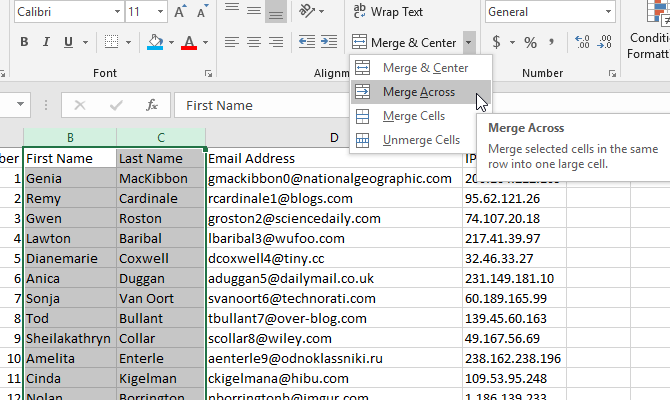
If you hit the Merge & Center button right now, you’ll end up with one huge cell that has a single value in it. Instead, click the dropdown arrow next to Merge & Center and select Merge Across:


Excel Merge Across button


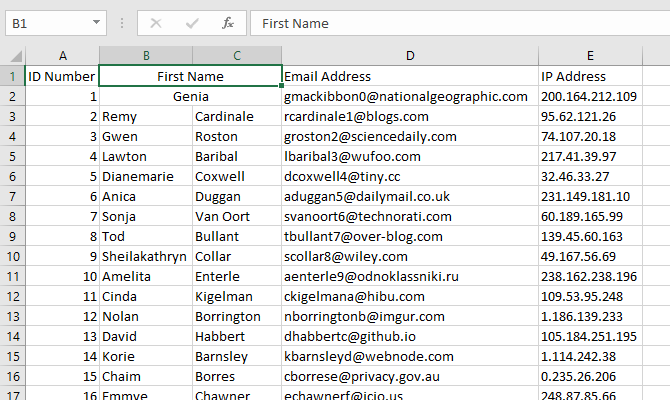
After clicking Merge Across, you’ll receive another warning from Excel. But instead of a single warning, you’ll get one warning for each row in your selection. Which is a lot. After clicking OK for each row, you’ll have a newly combined column:


Excel merged columns


You might be wondering why you wouldn’t just delete the second column in this case. Well, you probably would. Merging columns doesn’t do a whole lot for you.
Let’s talk about a better way to merge cells in Excel.

Combining Cells With CONCATENATE

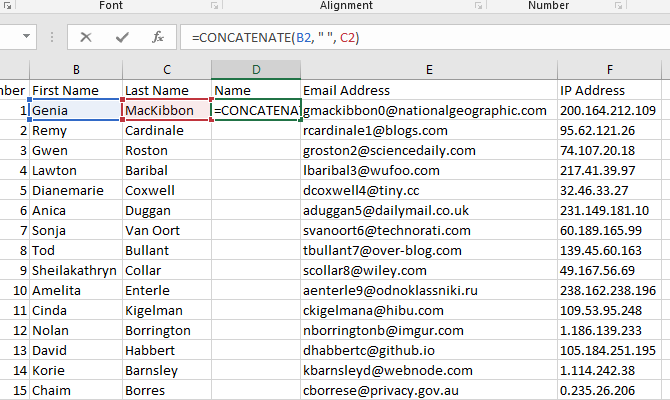
The fact that combining cells makes you lose data is a big disadvantage of using Excel’s merging function. However, you can get around that by using a formula. Here’s the syntax of the CONCATENATE function, one of Excel’s most useful text functions:
=CONCATENATE(text 1, [text 2],...)
The function takes multiple text inputs and creates a new cell that combines all of them. This lets you merge cells without losing any data. Let’s use the same spreadsheet as before, with the list of first and last names. Instead of merging the cells and losing the last names, we’ll create a new column and use CONCATENATE to bring in both the first and last names.
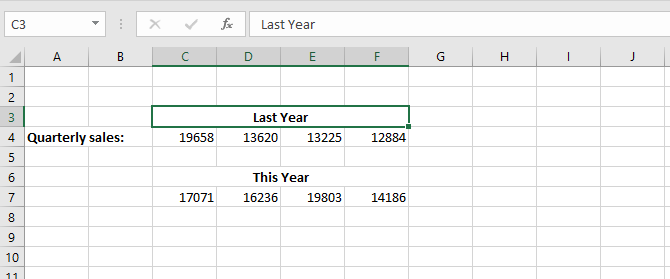
Here’s the formula we’ll use in the new columns:
=CONCATENATE(B2, " ", C2)
Notice that between B2 and C2 we have a space between two quotes. This is important because it inserts a space between the contents of the cells being merged. If you forget it, you’ll get the first and last names mashed together.
Here’s what it looks like in Excel:


Using CONCATENATE to merge cells in Excel


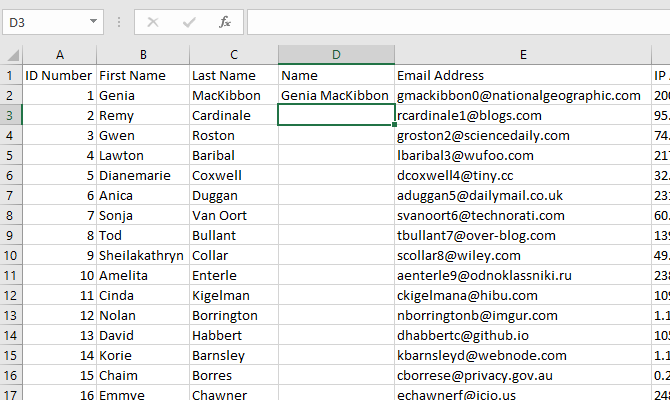
When I hit Enter, here’s what we get:


Merged cells using CONCATENATE


Much better than our first attempt, isn’t it?
You also have the advantage of being able to modify the combination later, whereas you cannot do that when you merge cells the regular way.

How to Unmerge Cells in Excel

If you decide to merge cells, you’ll also want to know how to unmerge them.
Unfortunately, unmerging doesn’t bring any of your lost data back. When you merge cells in Excel, you’re going to lose some information, and it’s gone forever. Merged cells can create weird spaces in your spreadsheet, though, and unmerging them solves the problem.
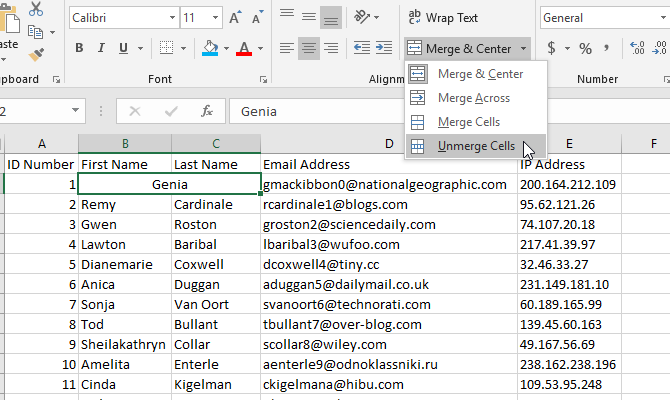
To unmerge cells, just select the merged cell, click the dropdown arrow next to Merge & Center, and click on Unmerge Cells:


how to unmerge cells in excel - Unmerge Cells button in Excel


The cells will go back to their original count and size. You’ll still only have the data from the upper-left corner of your selection, though. This is one reason why it’s a good idea to work on a copy of your spreadsheet (or use the CONCATENATE function).

Merging Cells Can Still Be Useful

While you’ll need to use CONCATENATE to merge cells without losing data, there are still some uses of merging in Excel. It’s often used for formatting to clean up a table, for example, which may help you get a better print of your spreadsheet:


Using Merge in Excel for formatting


In general, though, it’s better to use CONCATENATE if you’re looking to merge cells without losing data.
That being said, you may find that you come across a situation where you need to merge cells in Excel. Even an Excel beginner will need to use them every day. So, when you find one of those situations now, you’ll know exactly how to do it.
And don’t forget that you can merge Excel files and sheets too!

Source: https://www.makeuseof.com/tag/merge-unmerge-cells-excel/

Wednesday, June 21, 2017

How to use Microsoft Excel's Conditional Formatting

PCWORLD- Set up your spreadsheet to highlight important data automatically.
Microsoft Excel's conditional formatting is a wonderful "automatic" feature that allows you to formats cells based on the value of those cells or the value of the formulas in those cells. For example, you can specify that all the sales totals in your spreadsheet that exceed $5,000 are highlighted in yellow; or all the dates prior to the current year use a dark-green font; or use a shape or ratings icon to flag all duplicate values above 12,000. The options are endless and, in addition to all the preset formats, you can create your own custom formatting rules.
The best thing about this feature is that it provides a quick snapshot of your spreadsheet when you view it or show it to others. Because the formatting is based on values, you don't have to do anything to make it work except update your data.
A. Format cells that meet these value conditions

1. Open a sales spreadsheet or enter a dozen names with sales totals for the first four months of 2017; that is, Jan, Feb, Mar, and Apr.
2. Highlight the Jan column of sales totals.
3. Select Home > Conditional Formatting > Highlight Cells Rules > Greater Than.
4. Excel displays the Greater Than dialog box. In the field box under Format cells that are GREATER THAN, enter a number (for this example, 5000) and click OK.
5. Note that all the sales totals in column B that are greater than $5,000 are now highlighted in light green with a dark-green font.

01 highlight all cells greater than 5000 PC World / JD Sartain
Format all cells greater than 5000.
6. Use the same instructions above to highlight and format cells that are less than 5,000.

02 highlight all cells less than 5000 PC World / JD Sartain
Format all cells less than 5000.
7. The other options that apply to values are Format Cells BETWEEN two numbers, Format Cells that are EQUAL TO a specific number, and Format Cells that CONTAIN Duplicate or Unique values. Note the highlighted cells in the Mar and Apr columns.

03 highlight cells between two numbers equal to or containing PC World / JD Sartain
Format cells between two numbers, equal to a specific number, or containing unique or duplicate values.
B. Format cells that contain specific text
You can also use the Conditional Formatting feature to make certain text (letters, word, phrases, etc.) stand out.
1. Highlight the first column (A) of names.
2. Select Home > Conditional Formatting > Highlight Cells Rules > Text that Contains.
3. Excel displays the Text that Contains dialog box. In the field box under Format Cells that Contain the Text, enter the text you'd like to highlight (e.g., Smith) and click OK.
4. Note that all the Smith names are now highlighted in light red with a dark-red font.

04 format all cells that contain specific text PC World / JD Sartain
Format all cells that contain specific text.
C. Format cells that contain a Date within a range
1. Enter some dates in column F.
2. Select Home > Conditional Formatting > Highlight Cells Rules > A Date Occurring.
3. Excel displays the A Date Occurring dialog box. In the field box under Format Cells that Contain a Date Occurring, enter a date range such as Today, Yesterday, Tomorrow, This Month, Next Month, etc., and click OK.
4. Note that all the dates for April are now highlighted in light red with a dark-red font.

05 format cells that contain a date within a range PC World / JD Sartain
Format cells that contain a Date within a range.
D. Top/Bottom rules
The next section of Conditional Formatting features Top/Bottom rules, which provides formatting for the Top 10 Items, Top 10%, Bottom 10 Items, Bottom 10%, Above Average, and Below Average items. The Top and Bottom Percent and the Top and Bottom Items are self explanatory, right? In each highlighted range, Excel formats the highest or lowest numbers and the highest or lowest percent.
1. Highlight column B.
2. Select Home > Conditional Formatting > Top/Bottom Rules > Top 10 Items.
3. Excel displays the Top 10 Items dialog. The system defaults to 10, then prompts for a preset format. Select Light Red Fill with Dark Red Text, and click OK.
4. Next, highlight column C and follow the instructions above to format the Bottom 10 Items.

06 format cells for the top or bottom 10 PC World / JD Sartain
Format cells for the Top 10 or Bottom 10 Items in a range.
5. Highlight column D.
6. Select Home > Conditional Formatting > Top/Bottom Rules > Top 10%.
7. Excel displays the Top 10% dialog. The system defaults to 10, then prompts you for a preset format. Select Yellow Fill with Dark Yellow Text, and click OK.
8. Next, highlight column E and follow the instructions above to format the Bottom 10%.
Note: You can enter any number between 1 and 9999 for the Top and Bottom Items and any number between 1 and 999 for the Top and Bottom percent.

07 format cells for the top or bottom 10 percent PC World / JD Sartain
Format cells for the Top 10 or Bottom 10 percent in a range.
9. The Above and Below Average options are calculated like this: Excel averages the values in the highlighted column and determines the "average" number. In column B, the average is $3231. In column C, the average is 5523.50 You can check this by using the command =AVERAGE(B2:B13) and/or =AVERAGE(C2:C13).
10. Highlight column B for the Above Average formats and column C for the Below Average formats.
11. Follow the instructions above to select a preset format for each column.

08 format cells for the abovebelow average values PC World / JD Sartain
Format cells for the Above and Below Average values in a range.
E. Data Bars & Color Scales
Data Bars and Color Scales are formatting tools that spice up your spreadsheets with visuals that mean something. For example, Data Bars compare values—obviously the longest bars represent the highest values and the shortest bars denote the smaller values. Conversely, the Color Scales show a range between the highest, lowest, and mid-range values.
1. Highlight column B and choose a Gradient Fill Data Bar from Conditional Formatting > Data Bars.
2. Highlight column C and choose a Solid Fill Data Bar from Conditional Formatting > Data Bars.
3. Notice that the Data Bars function like a horizontal bar chart inside each cell. Expand the column width to see a better visual for the Data Bars.
4. Highlight column D and choose a Color Scale from Conditional Formatting > Color Scales, then highlight column E and choose a different Color Scale.
5. Notice how the colors change when the numbers break, and note the difference between columns D (Mar) and E (April).

09 use data barscolor scales to spice up your spreadsheets PC World / JD Sartain
Use Data Bars & Color Scales to spice up your spreadsheets with visuals that mean something.
E. Icon Sets
The Icon Sets also show a range of highest, lowest, and midrange values.
1. For example, highlight column B and choose Home > Conditional Formatting > Icon Sets > Shapes and choose the first set of dots on the list. Notice that Excel averaged out the numbers in the list and determined that all 1000s and 2000s are marked with red dots, 3000s and 4000s have yellow dots, and 5000s have green dots.
2. Highlight columns C, D, and E and select one Icon Set from each of the remaining three sets. Notice the difference between how the values are grouped in the Icon Sets with three icons, four icons, and five icons.

10 icon sets presets provide three fourfive levels of formatting copy PC World / JD Sartain
Preset Icon Sets provide three, four, and five levels of formatting.
Note: All the Icon Sets in this group: Directional, Shapes, Indicators, and Ratings provide three, four, and/or five levels of formatting, which again, determine the highest, lowest, and midrange values. You can easily change the formatting levels to more accurately fit your specific needs.
In fact, you can customize all of the Conditional Formatting features using self-defined rules that are easy to create through Excel's simple "walk-through" menus. We'll cover that next.

Source: http://www.pcworld.com/article/3181010/software/how-to-use-microsoft-excels-conditional-formatting.html#tk.rss_howto