This is where the number-crunching fun
starts. Learn the ins and outs of the logical formulas that represent
the heart of Excel.
Excel functions, or formulas, lie at the heart of the application’s deep
well of capabilities. Today we’ll tackle IF statements, a string of
commands that determine whether a condition is met or not. Just like a
yes-no question, if the specified condition is true, Excel returns one
user-determined value and, if false, it returns another.
The IF statement is also known as a logical formula: IF, then, else. If something is true, then do this, else/otherwise do that. For example, if it’s raining, then close the windows, else/otherwise leave the windows open.
The syntax (or sentence structure; that is, the way the commands are
organized in the formula) of an Excel IF statement is: =IF(logic_test,
value_if true, value_if_false). IF statements are used in all
programming languages and, although the syntax may vary slightly, the
function provides the same results.
Remember: Learning Excel functions/formulas and how they work are the
first steps toward using Visual Basic, Microsoft’s event-driven
programming language. Here are five easy IF statements to get you
started.
Past-due notices
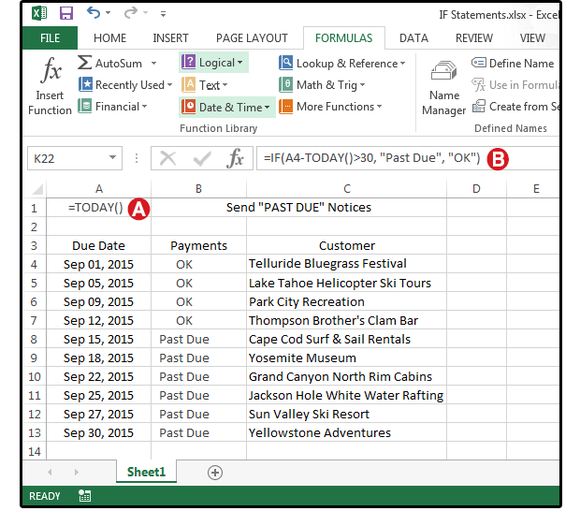
Use an IF statement to flag past-due accounts so you can send notices to those customers.
In this spreadsheet, the customer’s payment due date is listed in column
A, the payment status is shown in column B, and the customer’s company
name is in column C. The company accountant enters the date that each
payment arrives, which generates this Excel spreadsheet. The bookkeeper
enters a formula in column B that calculates which customers are more
than 30 days past due, then sends late notices accordingly.
A. Enter the formula: =TODAY() in cell A1, which displays as the current date.
B. Enter the formula: =IF(A4-TODAY()>30, “Past Due”, “OK”) in cell B4.
In English, this formula means: If the date in cell A4 minus today’s date is greater than 30 days, then enter the words ‘Past Due’ in cell B4, else/otherwise enter the word ‘OK.’ Copy this formula from B4 to B5 through B13.
Pass/Fail lifeguard test
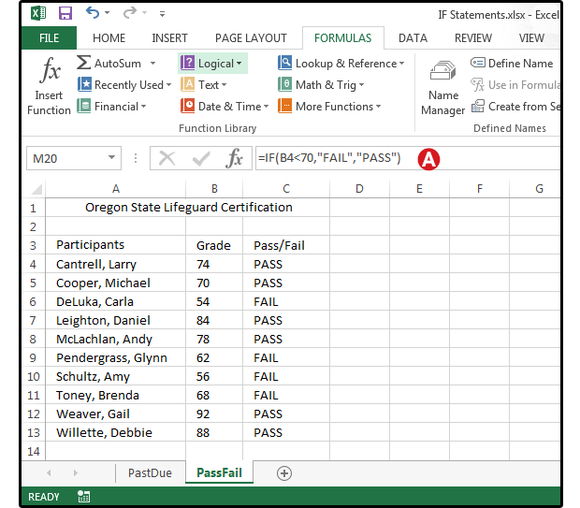
Use an IF statement to convert numeric scores to a pass-fail status.
The Oregon Lifeguard Certification is a Pass/Fail test that requires
participants to meet a minimum number of qualifications to pass. Scores
of less than 70 percent fail, and those scores greater than that, pass.
Column A lists the participants’ names; column B shows their scores; and
column C displays whether they passed or failed the course. The
information in column C is attained by using an IF statement.
Once the formulas are entered, you can continue to reuse this
spreadsheet forever. Just change the names at the beginning of each
quarter, enter the new grades at the end of each quarter, and Excel
calculates the results.
A. Enter this formula in cell C4: =IF(B4<70,”FAIL”,”PASS”). This means if the score in B4 is less than 70, then enter the word FAIL in cell B4, else/otherwise enter the word PASS. Copy this formula from C4 to C5 through C13.
Sales & bonus commissions
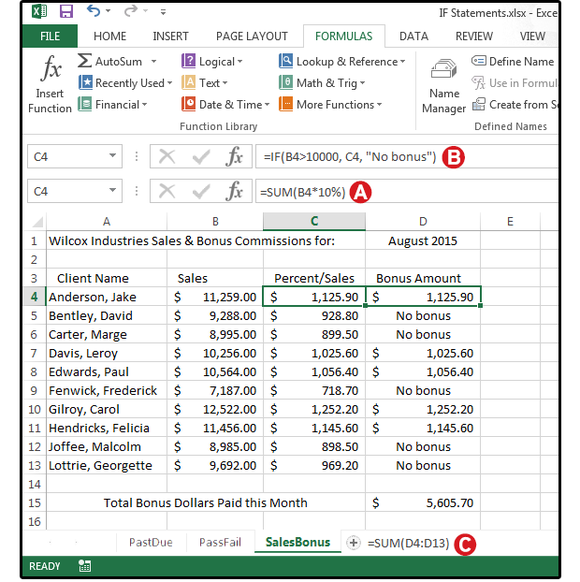
Use an IF statement to calculate sales bonus commissions.
Wilcox Industries pays its sales staff a 10-percent commission for all
sales greater than $10,000. Sales below this amount do not receive a
bonus. The names of the sales staff are listed in column A. Enter each
person’s total monthly sales in column B. Column C multiples the total
sales by 10 percent, and column D displays the commission amount or the
words 'No Bonus.' Now you can add the eligible commissions in column D
and find out how much money was paid out in bonuses for the month of
August.
A. Enter this formula in cell C4: =SUM(B4*10%), then copy from C4 to C5 through C13. This formula calculates 10 percent of each person’s sales.
B. Enter this formula in cell D4: =IF(B4>10000, C4, “No bonus”),
then copy from D4 to D5 through D13. This formula copies the percentage
from column C for sales greater than $10,000 or the words 'No Bonus'
for sales less than $10,000 into column D.
C. Enter this formula in cell D15: =SUM(D4:D13). This formula sums the total bonus dollars for the current month.
Convert scores to grades with nested IF statements
Use a nested IF statement to calculate different commissions based on different percentages.
This example uses a “nested” IF statement to convert the numerical Math
scores to letter grades. The syntax for a nested IF statement is this:
IF data is true, then do this; IF data is true, then do this; IF data is
true, then do this; IF data is true, then do this; else/otherwise do
that. You can nest up to seven IF functions.
The student’s names are listed in column A; numerical scores in Column
B; and the letter grades in column C, which are calculated by a nested
IF statement.
A. Enter this formula in cell C4: =IF(B4>89,”A”,IF(B4>79,”B”,IF(B4>69,”C”,IF(B4>59,”D”,”F”)))), then copy from C4 to C5 through C13.
Note: Every open, left parenthesis in a formula must
have a matching closed, right parenthesis. If your formula returns an
error, count your parentheses.
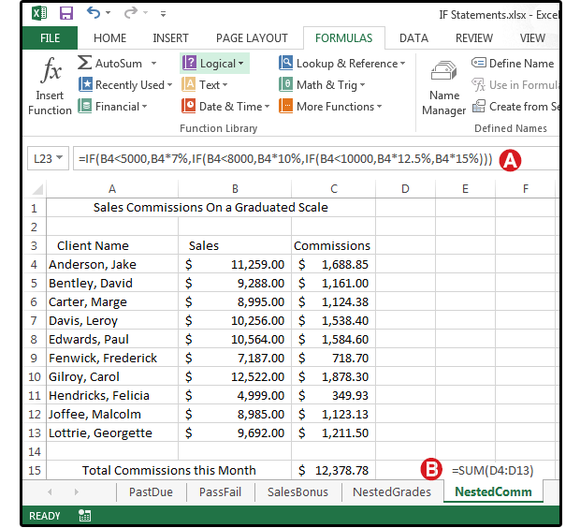
Determine sliding scale sales commissions with nested IF statements
This last example uses another nested IF statement to calculate multiple
commission percentages based on a sliding scale, then totals the
commissions for the month. The syntax for a nested IF statement is this:
IF data is true, then do this; IF data is true, then do this; IF data
is true, then do this; else/otherwise do that. The names of the sales
staff are listed in column A; each person’s total monthly sales are in
column B; and the commissions are in column C, which are calculated by a
nested IF statement, then totaled at the bottom of that column (in cell
C15).
A. Enter this formula in cell C4: =IF(B4<5000,B4*7%,IF(B4<8000,B4*10%,IF(B4<10000,B4*12.5%,B4*15%))), then copy from C4 to C5 through C13.
B. Enter this formula in cell C15: =SUM(C4:C13). This formula sums the total commission dollars for the current month.
Use a nested IF statement to calculate different commissions based on different percentages.
If you have a lot of blank rows in your Excel spreadsheet, you can
delete them by right-clicking each once separately and selecting
“Delete,” a very time-consuming task. However, there’s a quicker and
easier way of deleting both blank rows and blank columns.
First, we’ll show you how to delete blank rows. Deleting blank
columns is a similar process that we’ll show you later in this article.
Highlight the area of your spreadsheet in which you want to delete
the blank rows. Be sure to include the row just above the first blank
row and the row just below the last blank row.
Click “Find & Select” in the “Editing” section of the “Home” tab and select “Go To Special…” on the drop-down menu.
On the “Go To Special” dialog box, select “Blanks” and click “OK.”
All the cells in the selection that are not blank are de-selected, leaving only the blank cells selected.
In the “Cells” section of the “Home” tab, click “Delete” and then select “Delete Sheet Rows” from the drop-down menu.
All the blank rows are removed and the remaining rows are now contiguous.
You can also delete blank columns using this feature. To do so,
select the area containing the blank columns to be deleted. Be sure to
include the column to the left of the leftmost column to be deleted and
the column to the right of the rightmost column to be deleted in your
selection.
Again, click “Find & Select” in the “Editing” section of the “Home” tab and select “Go To Special…” from the drop-down menu.
Select “Blanks” again on the “Go To Special” dialog box and click “OK.”
Again, all the cells in the selection that are not blank are
de-selected, leaving only the blank cells selected. This time, since
there are no blank rows selected, only blank columns are selected.
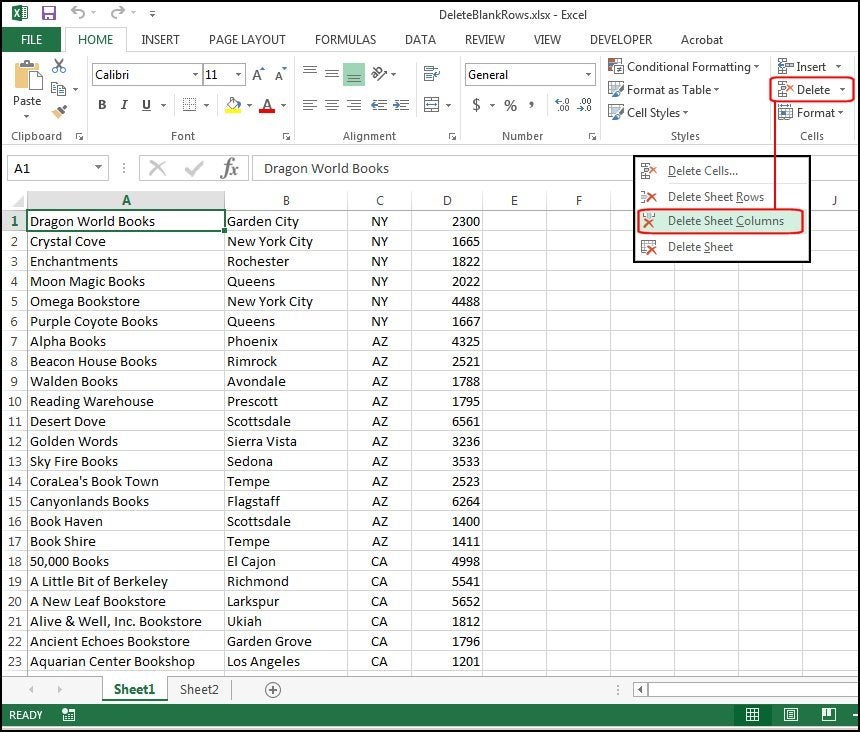
Click “Delete” in the “Cells” section of the “Home” tab and then select “Delete Sheet Columns” from the drop-down menu.
The blank columns are deleted and the remaining columns are contiguous, just as the rows are.
This method for deleting blank rows and columns is quicker,
especially if you have a large workbook containing large and multiple
worksheets.
When you are working with spreadsheets in Microsoft Excel and
accidentally copy rows, or if you are making a composite spreadsheet of
several others, you will encounter duplicate rows which you need to
delete. This can be a very mindless, repetitive, time consuming task,
but there are several tricks that make it simpler.
Getting Started
Today we will talk about a few handy methods for identifying and
deleting duplicate rows in Excel. If you don’t have any files with
duplicate rows now, feel free to download our handy resource with
several duplicate rows created for this tutorial. Once you have
downloaded and opened the resource, or opened your own document, you are
ready to proceed.
Option 1 – Remove Duplicates in Excel 2007 and 2010
If you are using Microsoft Office Suite 2007 or 2010 you will have a
bit of an advantage because there is a built in feature for finding and
deleting duplicates.
Begin by selecting the cells you want to target for your search. In
this case, we will select the entire table by pressing “Control” and “A”
at the same time (Ctrl + A).
Once you have successfully selected the table, you will need to click
on the “Data” tab on the top of the screen and then select the “Remove
Duplicates” function as shown below.
Once you have clicked on it, a small dialog box will appear. You will
notice that the first row has automatically been deselected. The reason
for this is that the “My data has headers” box is ticked.
In this case, we do not have any headers since the table starts at
“Row 1.” We will deselect the “My data has headers” box. Once you have
done that, you will notice that the whole table has been highlighted
again and the “Columns” section changed from “duplicates” to “Column A,
B, and C.”
Now that the entire table is selected, you just press the “OK” button
to delete all duplicates. In this case, all the rows with duplicate
information except for one have been deleted and the details of the
deletion are displayed in the popup dialog box.
Option 2 – Advanced Filtering in Excel 2007 and 2010
The second tool you can use in Excel to Identify and delete
duplicates is the “Advanced Filter.” This method also applies to Excel
2003. Let us start again by opening up the Excel spreadsheet. In order
to sort your spreadsheet, you will need to first select all using
“Control” and “A” as shown earlier.
After selecting your table, simply click on the “Data” tab and in the
“Sort & Filter” section, click on the “Advanced” button as shown
below. If you are using excel 2003, click on the “Data” drop down menu
then “Filters” then “Advanced Filters…”
Now you will need to select the “Unique records only” check box.
Once you click on “OK,” your document should have all duplicates
except one removed. In this case, two were left because the first
duplicates were found in row 1. This method automatically assumes that
there are headers in your table. If you want the first row to be
deleted, you will have to delete it manually in this case. If you
actually had headers rather than duplicates in the first row, only one
copy of the existing duplicates would have been left.
Option 3 – Replace
This method is great for smaller spreadsheets if you want to identify
entire rows that are duplicated. In this case, we will be using the
simple “replace” function that is built into all Microsoft Office
products. You will need to begin by opening the spreadsheet you want to
work on.
Once it is open, you need to select a cell with the content you want
to find and replace and copy it. Click on the cell and press “Control”
and “C” (Ctrl + C).
Once you have copied the word you want to search for, you will need
to press “Control” and “H” to bring up the replace function. Once it is
up, you can paste the word you copied into the “Find what:” section by
pressing “Control” and “V” (Ctrl + V).
Now that you have identified what you are looking for, press the
“Options>>” button. Select the “Match entire cell contents”
checkbox. The reason for this is that sometimes your word may be present
in other cells with other words. If you do not select this option, you
could inadvertently end up deleting cells that you need to keep. Ensure
that all the other settings match those shown in the image below.
Now you will need to enter a value in the “Replace with:” box. For
this example, we will use the number “1.” Once you have entered the
value, press “Replace all.”
You will notice that all the values that matched “dulpicate” have
been changed to 1. The reason we used the number 1 is that it is small
and stands out. Now you can easily identify which rows had duplicate
content.
In order to retain one copy of the duplicates, simply paste the
original text back into the first row that has been replaced by 1’s.
Now that you have identified all the rows with duplicate content, go
through the document and hold the “Control” button down while clicking
on the number of each duplicate row as shown below.
Once you have selected all the rows that need to be deleted, right
click on one of the grayed out numbers, and select the “Delete” option.
The reason you need to do this instead of pressing the “delete” button
on your computer is that it will delete the rows rather than just the
content.
Once you are done you will notice that all your remaining rows are unique values.
If you’re not using macros, you’re ignoring one of Excel’s most
powerful features. Macros save you time and spare you headaches by
automating common, repetitive tasks. And you don’t have to be a
programmer or know Visual Basic Applications (VBA) to write one. With
Excel 2013, it's as simple as recording your keystrokes.
Here we’ll show you how to create macros for five commonly performed functions.
Macro Basics
To record a macro, click Record Macro under the Developer tab. In the Record Macro dialog box, enter the following information and click OK when you’re done. Macro Name —the first character must be a letter,
followed by your choice of letters, numbers, or an underscore. No other
characters are accepted. Shortcut Key —CTRL+J and CTRL+M are available. If you choose any other character, your macro will overwrite that key’s original function. Save location —Macros saved in “This Workbook” or
“New Workbook” function only in those workbooks. To use in all
spreadsheets, save macros to the Personal Macro Workbook (PMW). Description —Describe the macro.
Name, save, and define your macro.
Because macros perform repetitive tasks, the object is to use them on
a lot of different spreadsheets. This means you cannot hard-code the
cell addresses (C1, D5, etc.), unless all of the spreadsheets are
identical, which means the same number of records in the same columns
and rows. To make the macro work on all spreadsheets with similar data, you must use the directional keys to navigate—then, the number of records won’t matter—and always begin at the A1 position.
Organize, format, and sort imported data
Data from other programs is often available in TSV or CSV files (Tab-
or Comma-Separated Values). Imagine receiving two dozen of these files
every month, which have to be organized, unwanted data removed, and then
sorted by company name. It takes hours to do a report like that. This
macro does it in seconds.
Open the CSV worksheet. Follow the directions above to name, define and save your macro, then record the keystrokes below.
1. Press CTRL+Home to reposition your cursor in cell A1. Hold down
the CTRL key and click the letters over the columns you want to
eliminate (B through N plus R). Select Home>Delete>Sheet Columns.
What a mess. First delete unwanted columns.
2. Hold down the CTRL key and click columns A and D. Select Home>Format>Column Width>42>OK. Hold down the CTRL key and click columns B and C. Select tab Home>Format>Column Width>25>OK.
3. Press CTRL+Home, then CTRL+A (to select all data in the spreadsheet).
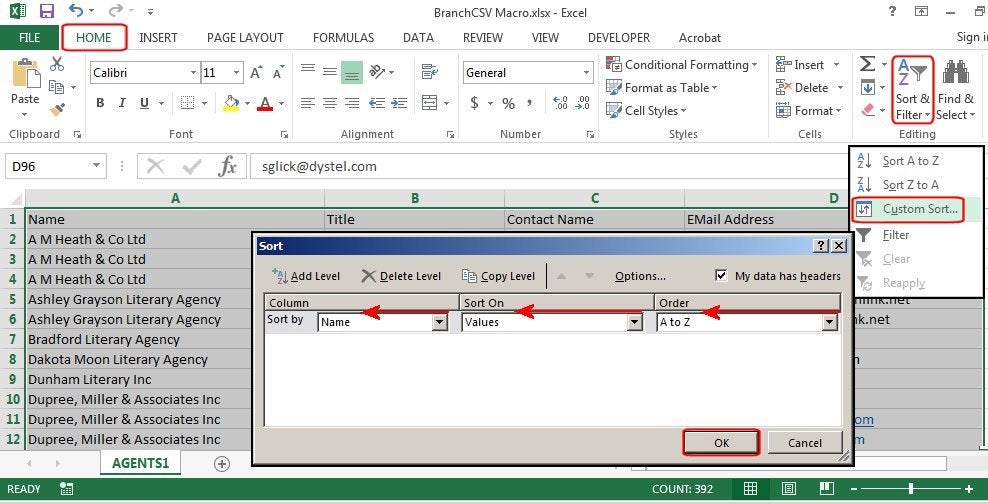
Select Home>Sort & Filter>Custom Sort. In the Sort dialog box under Column, choose Name. Under Sort On, choose Values, and under Order, choose A-Z.
Sort by company name.
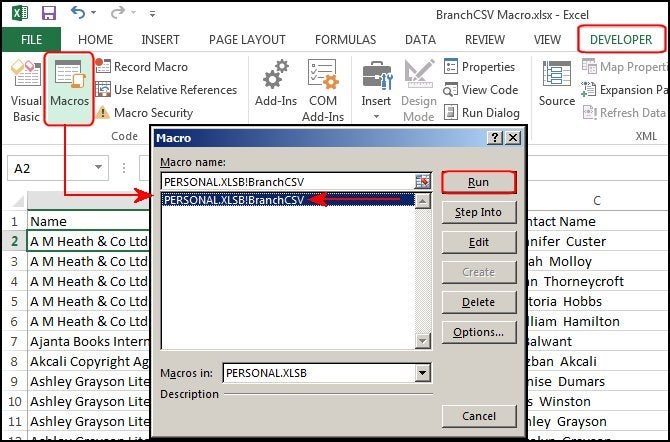
4. Select Developer>Stop Recording, and it’s finished. Save the worksheet as an Excel file. Open the CSV file again, select Developer>Macros, select the BranchCSV macro from the list, and click Run. The entire worksheet is organized in one second.
Open the CSV file again and run the macro.
Split names from one column into two
How many times have you received a long list of names in one column
you needed split into two columns, so the first and last name are
separated? This macro does it in seconds plus sorts the list, adjusts
the column widths, and gives a total list count. Open the Names
worksheet, name and define your macro, then record these keystrokes.
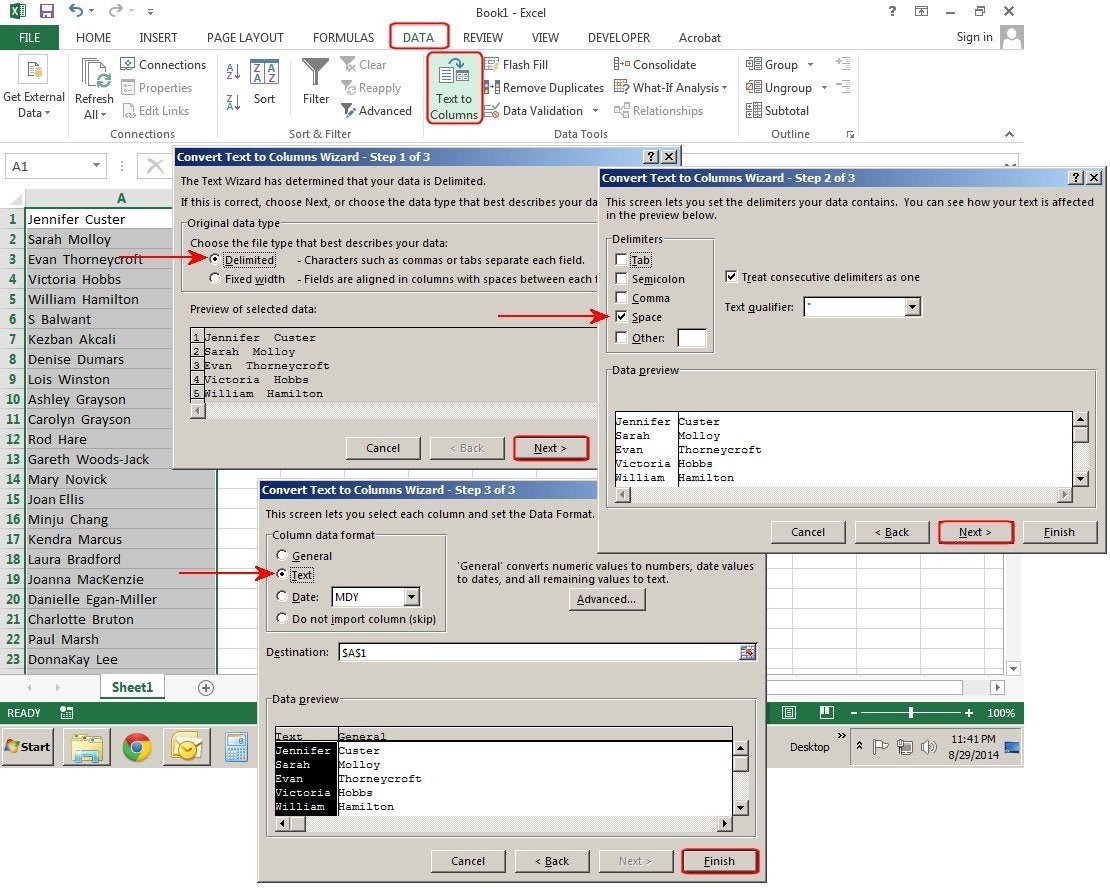
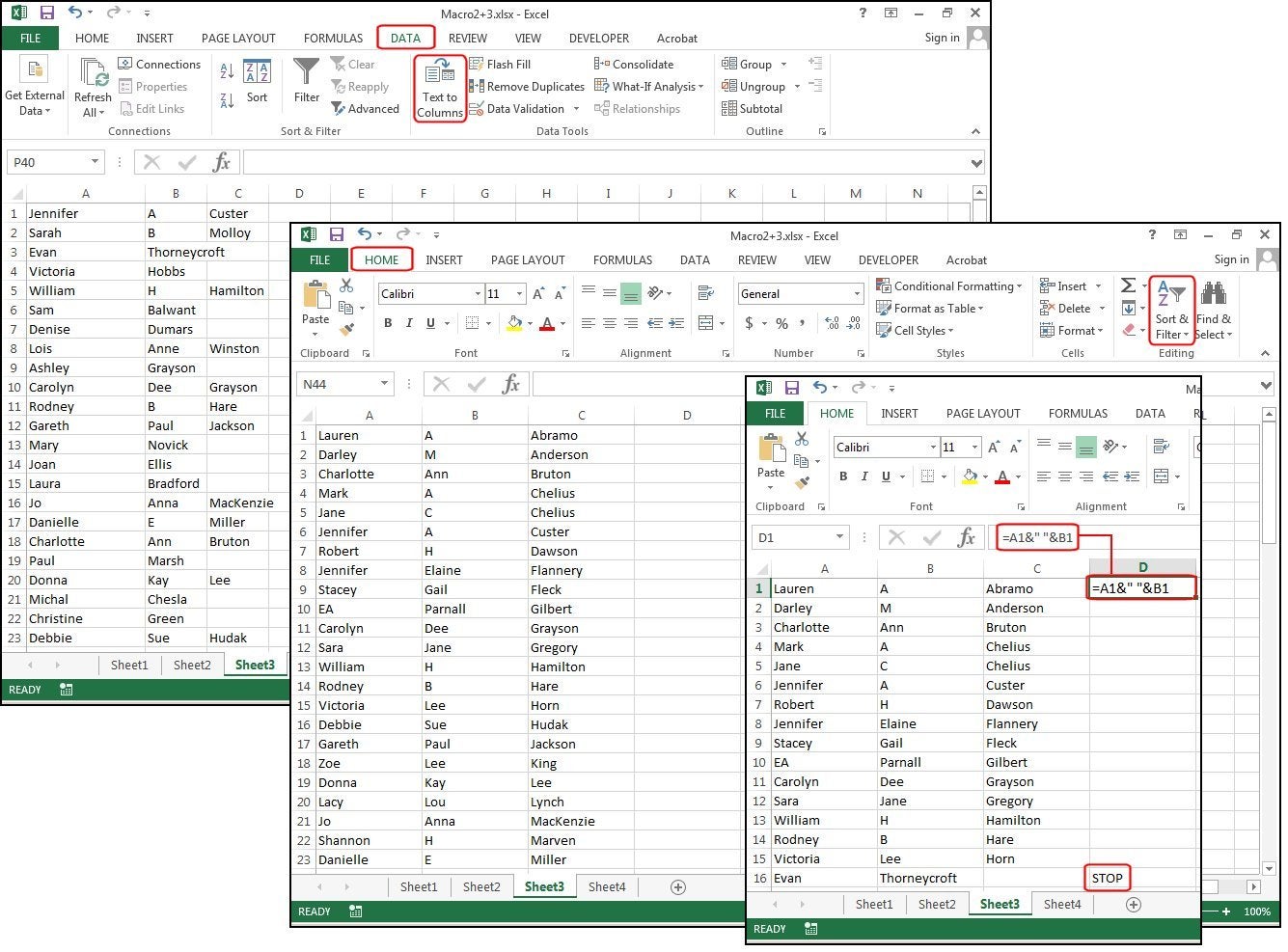
1. Press CTRL+Home, CTRL+A. Select Data>Text to Columns. In the first Wizard dialog box, click Delimited>Next. In the second box, choose the character that delimits (separates) your text. Our list is separated by spaces, so check Space>Next. In the last box, click Text>Finish.
Choose Text to Column to separate first and last names.
2. Press CTRL+Home, then CTRL+A. Select Home>Sort & Filter>Custom Sort. In the Sort dialog, select column B in the Sort By field. Click Add Level, then select column A in the Then By field. For Sort On and Order, leave the defaults Values and A-Z, then click OK.
Sort two levels, last name, then first name.
3. Press CTRL+Home. Press Shift-Right-Arrow to highlight A1 thru B1. Click Format>Column Width>15>OK.
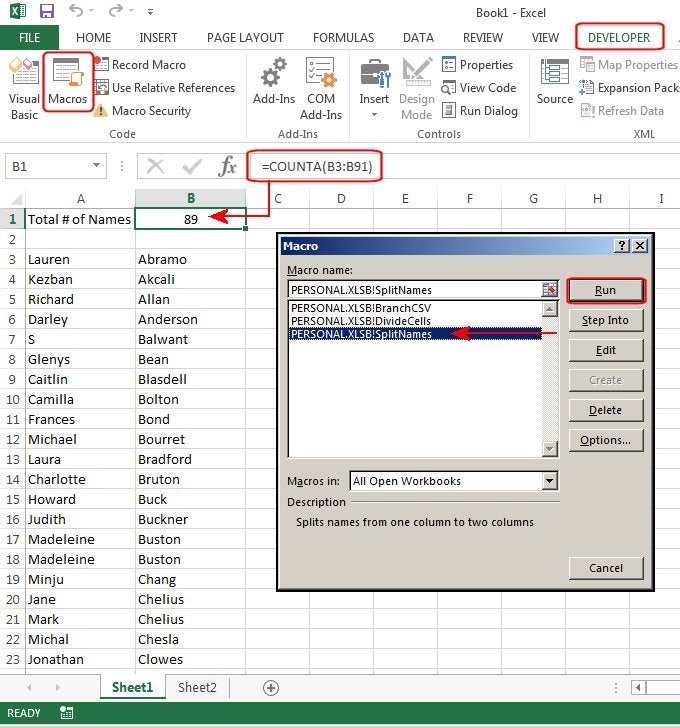
4. Press CTRL+Home. Select Home>Insert Sheet Rows, twice. In A1, type Total Names. Use the right arrow key to navigate to B1, then enter this formula: =COUNTA( and press CTRL+Down-Arrow, End, Shift-Down-Arrow, Enter, CTRL+Home. The total appears in B1.
Enter the formula to count the names in the list, then run the macro.
5. Stop Recording, save the worksheet as Names2. Open the Names file again and run the macro.
Split column and adjust for middle names
In Excel 2013, it’s easy to divide one column of names into two
columns, but what if half the list contains middle names/initials and
half does not? This macro extracts the middle names/initials entries,
rejoins them with the first names, then produces one list with
first/middle name in first column and last name in second column. Open a
three-names file, name and define your macro, then record these
keystrokes.
1. Press CTRL+Home, CTRL+A. Select Data>Text to Columns. In the Wizard boxes, click Delimited>Next, Space>Next, and Text >Finish. One column becomes three.
2. Press CTRL+Home, CTRL+A. Select Home>Sort & Filter>Custom Sort>column C. Press Shift-Right-Arrow. Click Format>Column Width>15>OK.
3. Press CTRL+Home, Right Arrow twice. Press End once,
Down-Arrow twice, Right Arrow once—this moves the cursor to the first
empty cell in column C, then to the adjacent cell in column D. Type: STOP, press Up Arrow, End, Up Arrow. Type this formula: =A1&” “&B1, then press Enter, Up Arrow.
Use directional keys to navigate so the macro works on all similar worksheets.
4. Press CTRL+C, Down-Arrow. Hold down Shift, then press End, Down Arrow, Up Arrow, Enter (copies formula). Press Up Arrow once, hold down Shift, press End, Down Arrow, Up Arrow (this highlights the range without STOP).
5. Press CTRL+C, CTRL+Home, select Paste>Paste Special>Values>OK. Press Escape, CTRL+Home, Right Arrow twice. Hold down Shift, press End, Down Arrow, CTRL+C, Left Arrow, Enter to copy last names. Press Right Arrow, Shift-Right-Arrow.
Copy and paste the formula, then remove extra columns.
6. Select Delete>Delete Sheet Columns. Press CTRL+Home. Stop Recording, save the worksheet as 3Names2; open 3Names again and run the macro.
Repetitive Text
If you’re typing the same information 10 times a day, you're begging
for a macro. Even if that information is brief, a macro does it in
seconds and ensures accuracy. This macro adds your company info to the
top of a worksheet and inserts the current date. Open a new worksheet,
name and define your macro, then record these keystrokes.
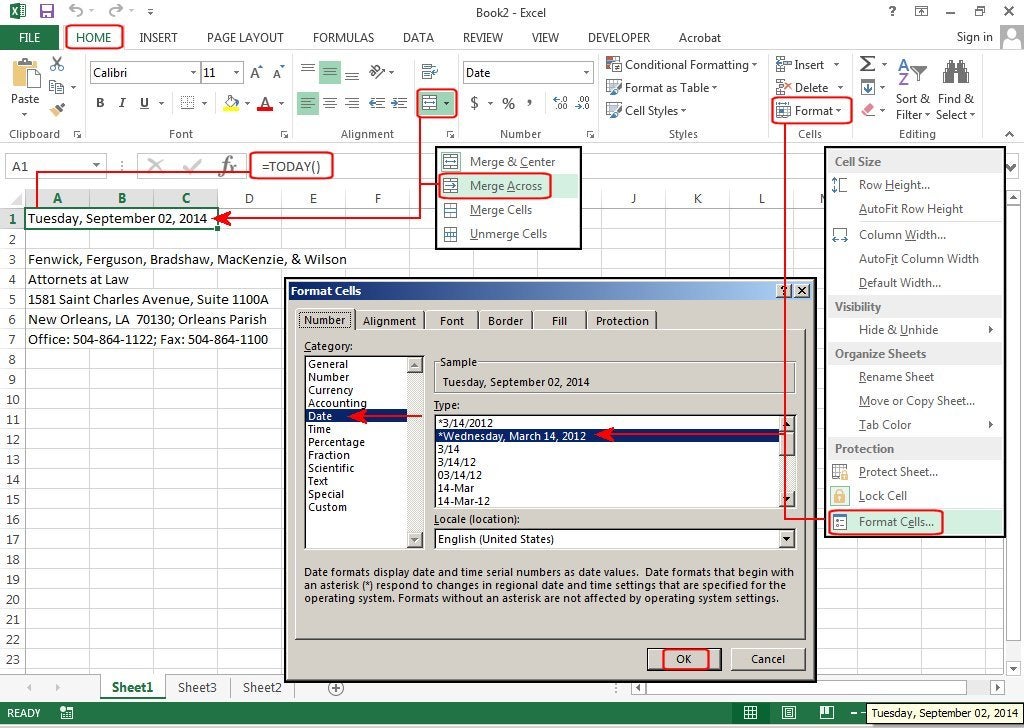
1. Press CTRL+Home. Hold down Shift, then Right Arrow twice. Select Home. From the Alignment group, select Merge Across. Enter this formula in cell A1: =TODAY()Enter, Up Arrow. Select Home>Format>Format Cells>Date. Choose a date format from the list, click OK. Press Down Arrow twice.
2. Type the repetitive information and press Enter at the end of each line. Press Down Arrow. Select Developer>Stop Recording. Delete it all, unmerge cells A1 through A3, then run the macro. Save the worksheet.
Create a header macro with the current date to eliminate repetitive typing.
Remove Blank Rows
A worksheet filled with blank rows is impossible to manage, sort, or
calculate. The first step is to instruct the macro to highlight the
spreadsheet data only, then select and remove the blank rows. Once
that’s accomplished, you can easily manage the data.
Open a file with blank rows, name and define your macro, then record these keystrokes.
1. Press CTRL+Home. Note: CTRL+A will not select all the data when blank rows are in the spreadsheet, but this macro will.
2. Select Home>Insert>Sheet Column. Press End, Down Arrow, Right Arrow, End, Up Arrow. Press CTRL+Shift-Home, Shift-Right-Arrow, CTRL+Shift-Right-Arrow. And the data range is properly selected.
Remove blank rows.
3. Select Home>Find & Select>GoTo Special (or press CTRL+G, ALT+S). Click Blanks>OK and all the blanks highlight in gray. Select Delete>Delete Cells>Shift Cells Up>OK and the blanks vanish. Press CTRL+home, then select Delete>Delete Sheet Column to remove the extra column we inserted to highlight the spreadsheet without hardcoding cell addresses.
4. Stop Recording. Undo all steps, then run the macro. Save the worksheet.
Tired of opening Excel from your desktop shortcut and seeing an empty workbook? Then follow these step-by-step instructions to create an application that will not display an empty workbook.
Help users increase productivity by automatically signing up for TechRepublic's free Microsoft Office Suite newsletter, featuring Word, Excel, and Access tips, delivered each Wednesday.
If you normally launch Excel 2002 by clicking a shortcut on your desktop, you may not want to see an empty workbook. To prevent Excel from displaying an empty workbook when it is started, follow these steps:
In Windows Explorer, go to \Program Files\Microsoft Office\Office10\Shortcut bar\Office and delete the existing shortcut for Excel. (In Excel 2003, go to \Program Files\Microsoft Office\Office11\Shortcut bar\Office.)
In Windows Explorer, go to \Program Files\Microsoft Office\Office10. Then, right-click the EXCEL.exe icon and select Create Shortcut. (In Excel 2003, go to \Program Files\Microsoft Office\Office11. Then, right-click the EXCEL.exe icon and select Create Shortcut.)
Right-click the shortcut icon and select Properties.
In the Shortcut tab, add a space, followed by the /e switch to the path in the Target box. For example, in Excel 2002, the entry in the Target box would be: "C:\Program Files\Microsoft Office\Office10\EXCEL.exe" /e
Click OK.
When you double-click the Excel shortcut icon, the application will open without displaying a blank workbook.
One of Excel’s greatest tricks is the dimensional or 3D reference. This
feature, which allows you to create formulas that refer to the same cell
or range on multiple worksheets, simplifies the creation of complex
documents like monthly inventories or sales reports. In Excel 2013,
Microsoft has beefed it up with enhanced options and formulas.
To illustrate the power and flexibility of 3D worksheets, we’ll create a
Year-to-Date project that calculates the utility bills for a small
business for each month, with the year-to-date totals on the first
sheet. This workbook (which contains of all the worksheets in this
project) calculates the columns, rows, and multiple spreadsheets
three-dimensionally.
Because retyping the same data is counterproductive, we’ll create the
month of January first, add the formulas for the columns and rows, and
then copy this sheet 12 times (one for each month, plus the year-to-date
sheet).
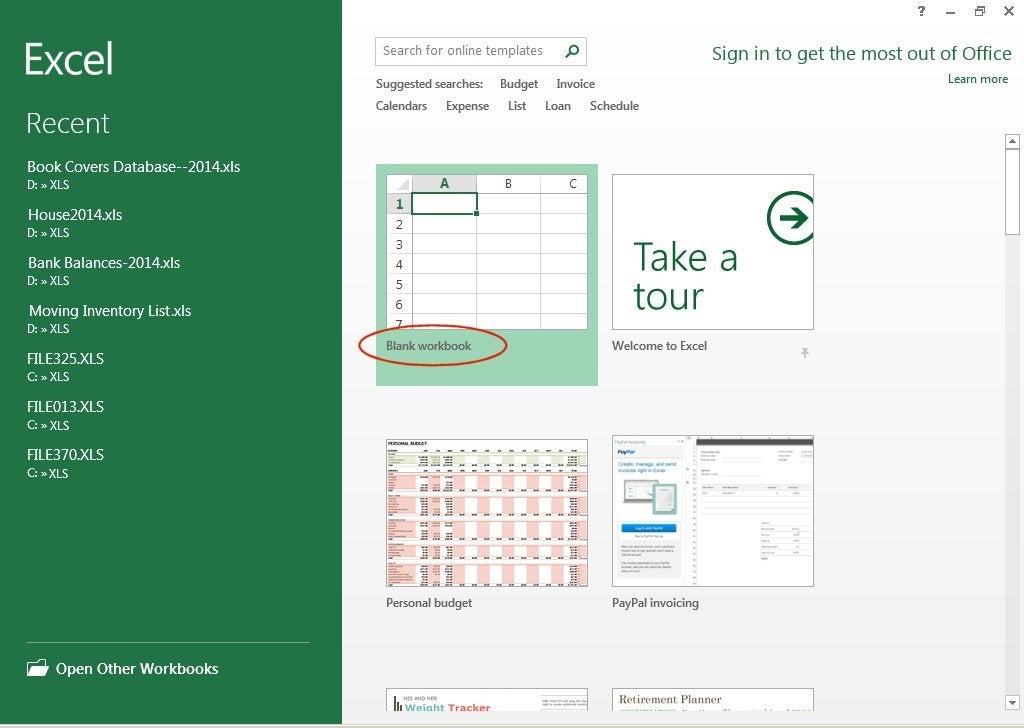
Start by selecting Blank workbook from the Home menu page.
In Excel 2013 Home Menu, select Blank workbook.
Sheet title and custom date
In cell A1, type January 2014. Excel changes the format to Jan-14. Right-click the mouse in that cell and choose Format Cells from the dropdown list. Choose Date
from the format options, and you’ll notice that there is not a format
listed for the month spelled out with a four-digit year. Choose Custom and in the Type field box above the list enter mmmm yyyy, then click OK. Now your title says 'January 2014.'
This small business has four designers who rent space. The rent is
divided equally, but the utilities and other fees are calculated by
percentages of use, therefore each designer pays a different price. Be
sure to use the actual percent sign when you enter these numbers.
Enter data and format cells
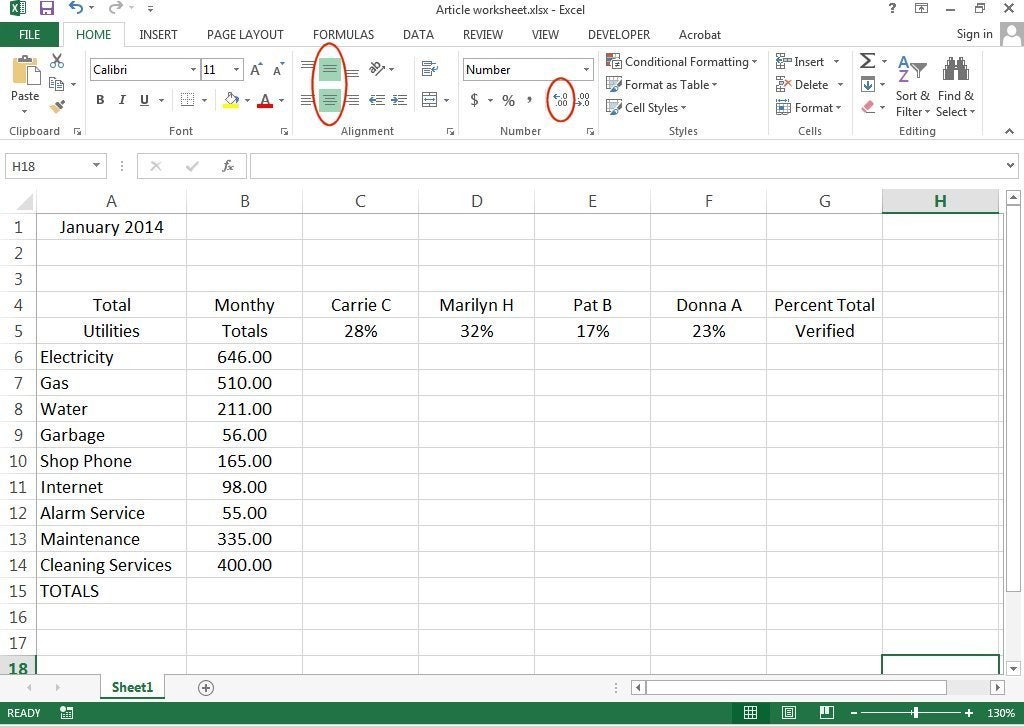
In cells A4 through G4 enter this data: Total, Monthly, Carrie C, Marilyn H, Pat B, Donna A, and Percent Total. In cells A5 through G5 enter this data: Utilities, Totals, 28%, 32%, 17%, 23%, and Verified. Select cells A4 through G5 and click Center from the Ribbon bar on the Home menu tab. Note: You can center both horizontally and vertically.
In cells A6 through A15, enter this information: Electricity, Gas, Water, Garbage, Shop Phone, Internet, Alarm Service, Maintenance, Cleaning Services, TOTALS. Adjust column widths to fit the data entered. In B6 through B14, enter these numbers: 646, 510, 211, 56, 165, 98, 55, 335, and 400. Select cells B6 through G15, then click Center, and then click Increase Decimal (two times) to format for two decimal places (both on the Home menu tab).
Enter worksheet data and format the cells.
Add formulas
This part is really easy and, by copying all the formulas, really fast. In cell C6 enter this formula:
=sum(B6*C5) and click Enter. With your cursor on
C6, press F2 to edit the formula. Position your cursor before the 'B' in
'B6' (between the left parenthesis and the B), then press F4 three
times—until you see a dollar sign appear in front of the letter 'B.'
Still in edit mode, move the cursor to the left of the letter C in C5
and press F4 twice (until you see a dollar sign appear in front of the
number 5), then press Enter. Your formula in C6 should look
like this: =sum($B6*C$5). This little trick locks the pieces of the
formula (that is, column B and row 5) that you don’t want to change
(called absolute reference) and therefore prevents lots of editing.
Copy formulas
Reposition your cursor to C6. Click Copy from the Ribbon bar (or press Ctrl+C). Move your cursor to C7, select cells C7 through C14, then press Enter. With C7 through C14 still selected, click Copy again, move your cursor to D7, select D7 through F14, then press Enter. All the cells will calculate.
Now, to verify that all the calculations are correct (in case there’s a
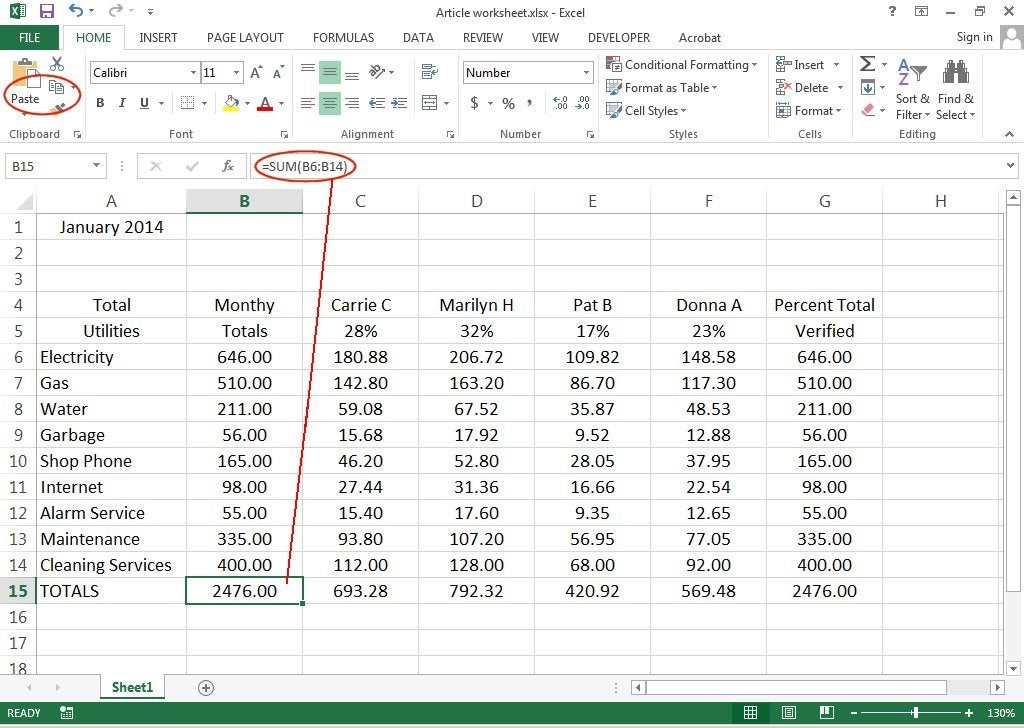
typo somewhere), position the cursor in G6 and enter this formula: =sum(C6:F6) and press Enter (you can also highlight these ranges and let Excel fill in the cell locations). With your cursor on G6, click Copy, select cells G7 through G14, and press Enter. If the numbers in column G match the numbers in column B exactly, then your formulas are all correct.
Next, position your cursor on cell B15 and enter this formula: =sum(B6:B14) and press Enter. With your cursor on B15, click Copy, select cells C15 through G15, and press Enter.
Add and copy formulas to worksheet.
Copy and rename spreadsheets
Copy Spreadsheet 12 Times.
Copy this spreadsheet 12 times for a full year's worth of data. Place your cursor on the Sheet1 tab at the bottom of your Excel window. Right-click the mouse and select Move or Copy from the drop list. Check the box that says Create a Copy, select (move to end), then click OK.
Double-click the tab that says Sheet1 and rename it YTD. Double-click the remaining sheet tabs Sheet1 (2) through Sheet1 (12) and rename the worksheet tabs Jan, Feb, Mar, etc., through Dec.
Next, change the titles of each sheet to match the tabs (type over
'January 2014' with correct titles). Note: Keep spreadsheet tab titles
as short as possible for easier dimensional calculating.
Rename spreadsheets and spreadsheet tabs.
Access spreadsheets Feb through Dec and enter some random numbers in the
Monthly Totals column—cells B6 through B14 (not B15, because it’s a
formula). For this example, the dimensional totals only calculate Jan
through May.
Add 3D worksheet formulas
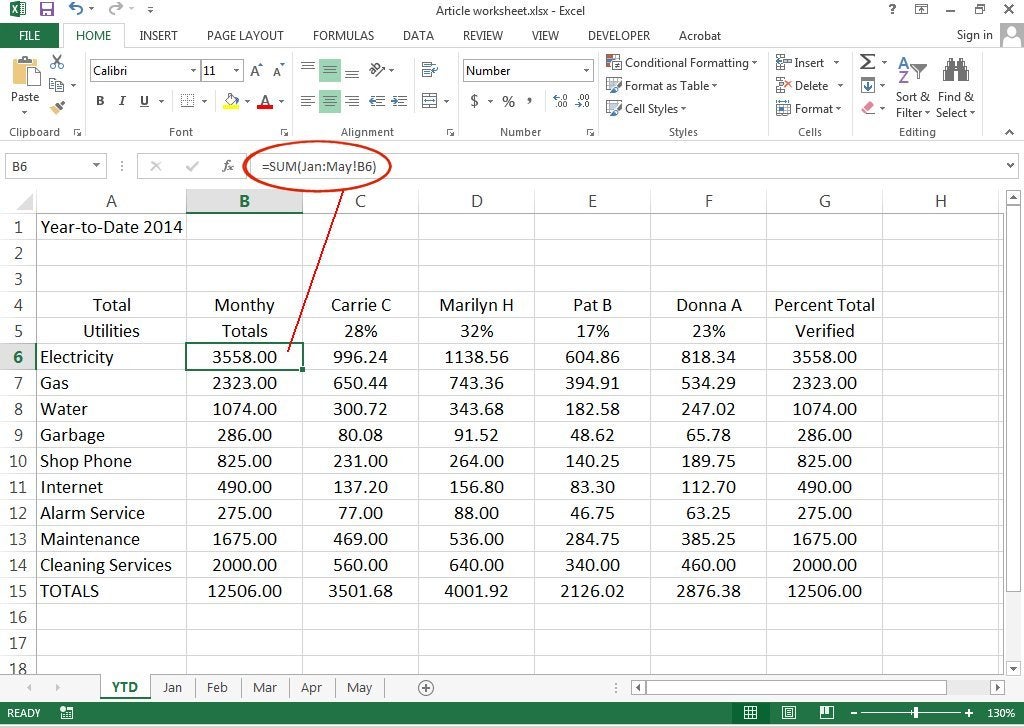
On the YTD spreadsheet, position your cursor on B6 and enter this formula: =sum(Jan:Dec!B6). Copy this formula from B6 down to B7 through B14 (not B15, because this formula totals this column).
Add formulas to total spreadsheets dimensionally from Jan through Dec.
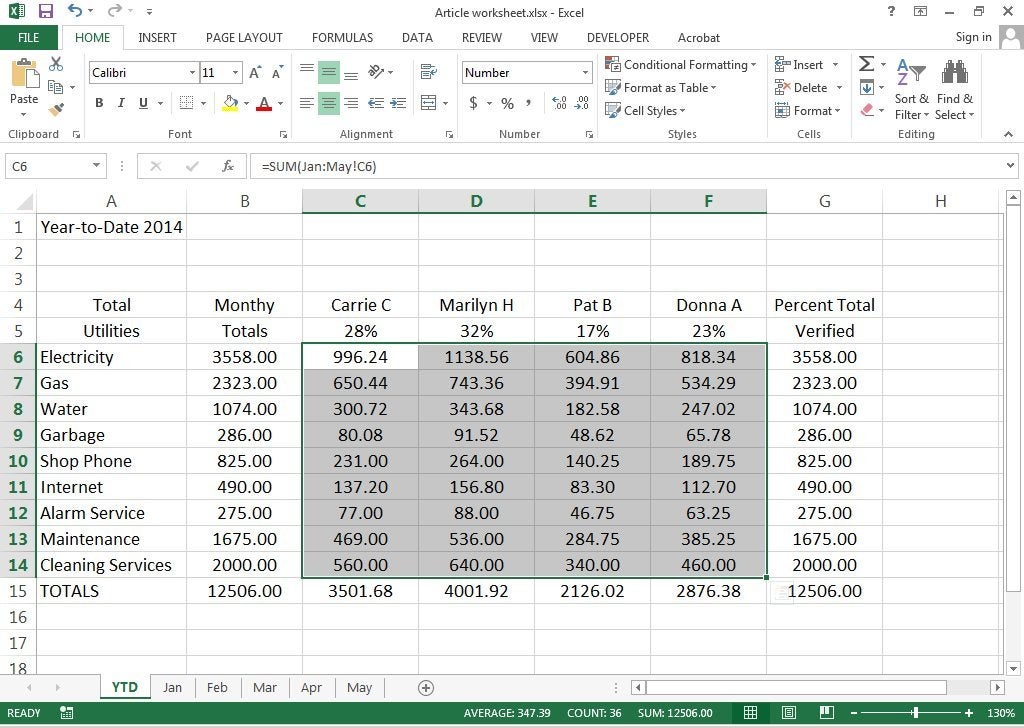
Next, select cells B6 through B14, select Copy, then highlight C6 through F14 and press Enter.
The YTD spreadsheet now has the totals from the entire year. Every time
you make a change in column B (Monthly Totals) on spreadsheets Jan
through Dec—that is, every time you make an adjustment to the individual
utility fees—the entire spreadsheet recalculates to reflect those new
numbers.
Copy dimensional formulas from column B to remaining columns in YTD spreadsheet.
In 2015, delete the numbers in column B from B6 thru B14 on all
spreadsheets from Jan through Dec, then enter the correct utility fees
each month as the bills arrive. Watch the YTD spreadsheet totals change
as it adds each month's totals. Once these spreadsheets are created with
the formulas, you’ll never have to repeat this process.
Future edits are easy
If you have to add or remove a utility from a 3D worksheet, be sure to
stay inside the calculated area. For example, if the alarm service is
discontinued in June of 2015, don’t change anything. Just enter zeros in
that cell for July through Dec. Then, in January of 2016, place your
cursor on that row (on each spreadsheet, Jan through Dec, including the
YTD spreadsheet) and select Delete Sheet Row (from the Home menu tab).
To add a new utility, place your cursor anywhere between cells B6 and B14 and select Insert Sheet Row.
Then copy the formulas for that row from the row above it. Inserting
new rows inside the matrix ensures that the new row’s numbers and
formulas are included in the project-wide formulas. If rows are inserted
outside the matrix, the numbers and formulas on this row will not be
included in any of your calculations unless you adjust all your formulas to include this new range.
Note that when you insert a new row between B6 and B14, the TOTALS row
moves down to B16, and the formula in that cell (which totals column B)
changes from =sum(B6:B14) to =sum(B6:B15). Stay inside the original
matrix range, and everything will calculate accurately throughout the
entire project.
Stay inside the original spreadsheet matrix when adding or deleting rows.